Ask Questions About Your Projects in Plain English
The Doclio AI Assistant answers questions about your projects, drawings, annotations, and reports — without you needing to open each one and search manually. It also compares drawing revisions visually, and can search the web when your project data doesn't have the answer.
Where to Find It
Click the AI button in the main header to open the chat panel. On mobile, it's the lightbulb icon in the nav bar. On desktop you can drag the panel by its header and resize it from the corners; on mobile it opens full-screen with a close button at the top.
Three Modes
The assistant runs in one of three focused modes, shown as a chip in the chat header: Doclio Assistant for general help, Doclio Estimator for takeoffs, and Doclio Tech for correspondence drafting. Click the chip to switch — see AI modes. For click-to-find symbol counting on vector PDFs (zero credit cost), see the MATCH tool. The AI can also draft a full Inspection & Test Plan from your project documents — it proposes tasks with acceptance criteria, verification, references, and suggested hold/witness codes for you to review. See Generating ITPs from documents.
What You Can Ask
The assistant has read access to your accessible projects (whatever you can see in the app, the assistant can see — sharing rules apply). Useful things to ask include:
- Status questions — "What's overdue?", "Show me open RFIs on Project X", "Which annotations were assigned to me this week?"
- Summarisation — "Summarise the open defects on the Sample House project", "What changed in the last 7 days?"
- Lookup — "Find the annotation about beam clearance on drawing S-100", "Who approved the cladding revision?"
- How-to questions — "How do I share a project with a contractor?", "How do I generate a punch list report?". The assistant has access to this Help Centre and uses it for product questions.
- Revision comparison — "What changed between Rev A and Rev B on drawing E01?". Triggers the AI Vision flow described below.
The assistant works best with specific, scoped questions. A vague question like "tell me about my projects" returns a vague answer; "list overdue actions across all projects, sorted by project" gets a useful one.
How AI Credits Work
Every AI query consumes a small number of credits from your organisation's balance. Each plan includes a monthly allowance of credits, and you can buy top-up packs if you run out before the month resets.
On shared projects, whose credits a query spends depends on the project owner's settings — by default you spend your own, but owners can sponsor chosen share roles (with optional caps) or restrict AI access per role. See AI on Shared Projects — Access, Sponsorship & Caps.
What Each Query Type Costs
| Query type | Credits |
|---|---|
| Text question (most queries) | 1 |
| Web search (when the assistant offers it) | +2 on top of the text query |
| Drawing revision comparison (default Vision) | 3 per drawing pair |
| Pro mode revision comparison (most thorough model + change overlay) | 15 per drawing pair |
| Cached comparison lookup (already analysed) | 0 (free) |
The header of the chat panel always shows your current credit balance, so you can see what each query just cost. The footer shows a per-message credit cost as you type.
Per-Plan Monthly Credits
| Plan | Credits per month |
|---|---|
| Starter (free) | 60 in your first month, then 20/month |
| Growth | 500 |
| Business | 2,500 |
| Professional | 10,000 |
| Enterprise | Unlimited |
Monthly credits reset at the start of each billing cycle. Unused monthly credits do not roll over — only purchased top-up credits roll forward.
Trial Bonus — 500 Credits for 14 Days
Top-Up Packs
If you run out of credits mid-month, you can buy a one-time top-up pack from Settings → Billing → AI Credits. Four pack sizes are available:
- Starter pack — $5 USD for 200 credits
- Small — $10 USD for 500 credits
- Medium — $25 USD for 1,500 credits (best value per credit)
- Large — $50 USD for 3,500 credits
Top-up credits don't expire — they roll over indefinitely until consumed, separate from your monthly plan allowance. The header balance always shows the combined total.
Drawing Revision Comparison
If a drawing has more than one revision, the AI Assistant can compare them visually and tell you what changed. Ask "what changed between revisions on [drawing name]?" or "compare the revs on E01" and the assistant will:
- Find every drawing in your project that has both a current and a superseded revision.
- Render each PDF pair to images and send them to the AI model for visual comparison.
- Return a categorised summary — design changes (structural, dimensional, element-level) versus title-block-only changes (revision number, date, drafter).
The first comparison takes about 20-40 seconds while the images are processed. Subsequent comparisons of the same drawing pair are cached and free — pre-computed in the background after each new revision is imported, so when you ask, the answer is instant.
Default vs Pro Mode
There are two comparison modes — understand the cost difference before clicking:
- Default (3 credits per drawing pair) — the standard AI model. Picks up most design changes accurately. Right tool for routine revision-tracking.
- Pro mode (15 credits per drawing pair) — our most thorough model plus a pixel-by-pixel change overlay sent alongside the images. Catches subtle changes a quicker model might miss. Best reserved for high-stakes revisions where you really need to know about every dimension change. Toggle Pro mode in the chat input footer before sending. (In the Settings activity log, these queries show a DEEP DIVE badge.)
If you have 8 drawings to compare, default mode costs 24 credits and Pro mode costs 120 — so it really matters which mode you pick. The chat shows the credit cost up-front before you confirm.
Web Search
If the assistant can't find an answer in your project data or the Help Centre, it will offer a "Search the web" button. Clicking it searches the web and summarises the top results with source links. Web search adds 2 credits on top of the text-query cost.
This is useful for general construction questions (codes, standards, product specs) that wouldn't live in your project data. The assistant won't silently search the web — it always asks first.
Tips for Better Answers
- Name the project. "What's overdue on Sample House?" beats "What's overdue?" if you have many projects, because it scopes the context.
- Ask one thing at a time. Compound questions ("list defects, summarise them, and tell me which are overdue") often get partial answers. Break them up.
- Use the same words your team uses. The assistant matches against your actual project data — if you call them "RFIs" not "queries", say "RFIs".
- Click the document links. When the assistant cites an annotation or drawing, the link button takes you straight there.
- Don't paste sensitive data into prompts. The assistant has access to your project data already; you don't need to paste it.
What If I Run Out of Credits?
If you try to send a query and you don't have enough credits, you'll see a message offering two options:
- Buy a top-up pack — opens Stripe Checkout for one of the four pack sizes above. Credits land within seconds of payment confirming, and the question you were trying to send is saved and restored when you return — you don't lose your place.
- Upgrade your plan — opens the pricing page. Each plan tier ships with more monthly credits, plus larger limits on projects, drawings, and storage.
You can also wait until your next billing cycle for the monthly allowance to reset.
Privacy and Data Handling
Your project data is sent to Anthropic (the AI provider) only at the moment a query is processed, scoped to whatever the assistant needs to answer the specific question. Anthropic does not train on your data — that's contractually committed in their API terms. Web search results are fetched via Tavily and are not retained beyond the response. Full details are in our Privacy Policy, section 5.1 (Sub-Processors).
Need More Help?
If something looks wrong with credit counting or the assistant gives obviously incorrect answers about your project data, please submit a support ticket with the question you asked and what you expected. We log every AI query for billing purposes and can look up exactly what happened.
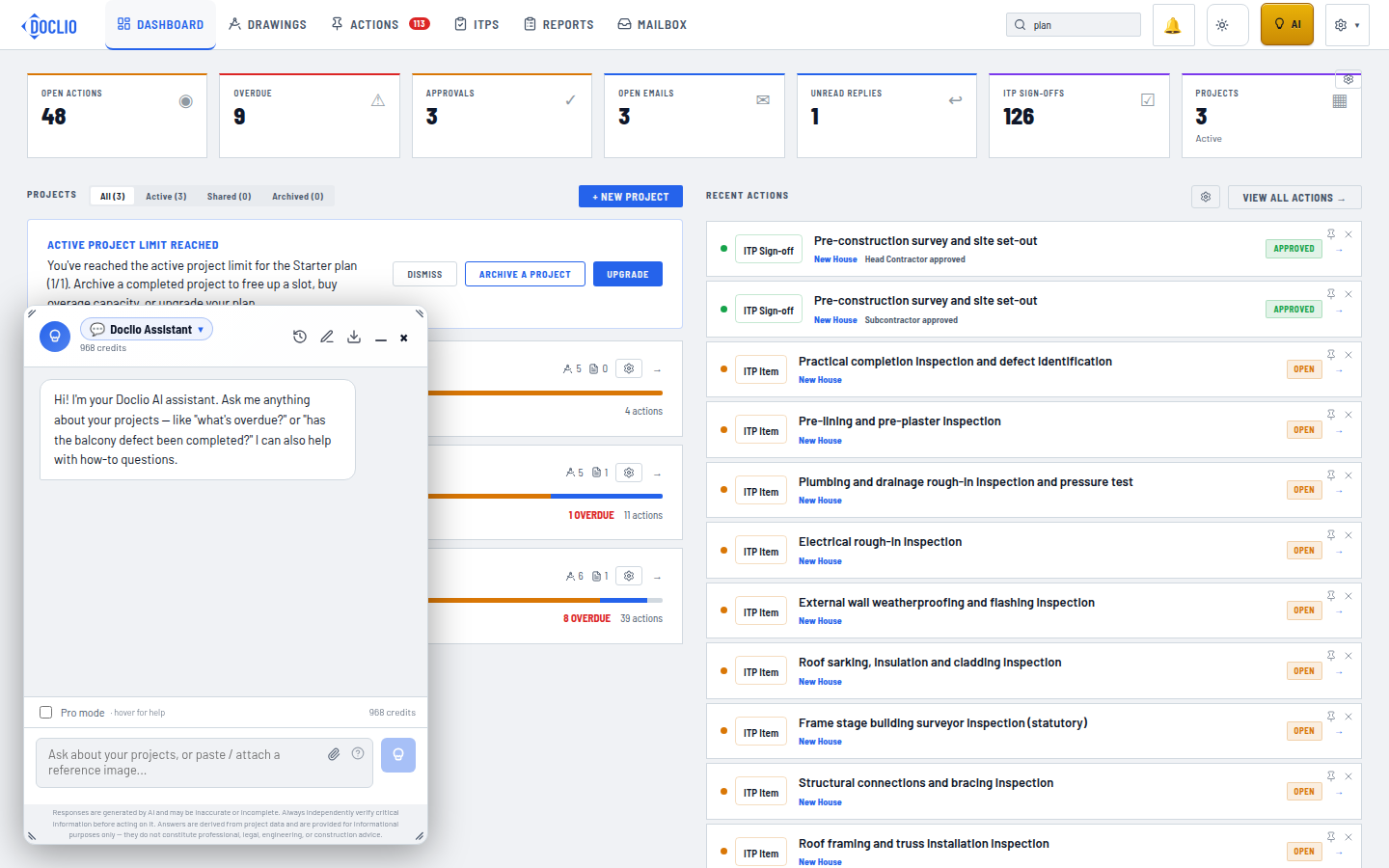
Ask questions about your projects in plain language