Last updated: May 2026
The Doclio AI assistant runs in one of three modes, each tuned for a different kind of construction task. When you open the chat, the mode appears as a chip in the header (for example Doclio Assistant). Click it to switch modes or start a fresh chat in a different mode.
The Three Modes
Doclio Assistant (default)
General help. Project status, navigation, recent activity, "what's overdue", "who's blocking what", "find the annotation about beam clearance". Acts as your project's institutional memory — when you ask a question, it surfaces existing project data (annotations, comments, reports, prior takeoffs) BEFORE doing any new work. If your question needs a fresh takeoff or a formal draft, it'll suggest switching to the right specialised mode rather than guessing badly.
Doclio Estimator
Quantity surveying. Counts, lengths, areas on drawings. Use this when you need to take off downlights, GPOs, cladding area, skirting length, anything quantity-bearing.
- MATCH tool — click any symbol on the drawing, the matcher finds every similar cluster of PDF vector segments. Deterministic, zero credit cost. See the Vector symbol matcher article for details.
- Exemplar paste — copy a snippet of the target symbol and paste it into the chat (Ctrl+V). The AI matches against your reference image.
- Pro mode toggle — uses our most thorough model + higher-resolution renders + a verification pass for harder symbols. ~5-10× the credit cost; use when Standard mode is missing items or placement is drifty. (These queries show a DEEP DIVE badge in the Settings activity log.)
- Authoritative-data respect — before running a fresh AI takeoff, Estimator checks your project for existing QS takeoffs or issued reports answering the question. If found, you see them first with provenance + the choice to use the existing number, verify with a new AI takeoff (costs credits), or dismiss. The AI never overrides existing human-created quantities silently.
Doclio Tech
Correspondence and contract drafting, built around the eight formal templates: Note, RFI, Approval, Variation, Defect List, Quote Request, Distribution, Site Instruction. Describe the situation in plain English, the assistant proposes the right template, asks 1-2 clarifying questions, then emits a ready-to-send draft you review in the Mailbox compose modal. Grounds drafts in actual project data — quotes existing takeoffs, dimension callouts, prior comments — rather than guessing.
Switching Modes
The mode chip in the chat header
The chip showing your current mode (with its icon) is clickable. Opens a dropdown with two sections:
- Switch this chat to: — changes the active chat's mode in place. The conversation history stays; subsequent messages use the new mode's behaviour.
- Start a new chat in: — opens a fresh chat in the chosen mode, leaving your current conversation parked. Good when you're mid-takeoff and need to ask a quick status question without losing context.
Auto-suggestion chip
If you ask a question that fits a different mode (for example you're in Assistant and you ask "how many downlights on E01"), the assistant answers AND surfaces a chip suggesting the more specialised mode:
[ Switch this chat to Estimator ] [ New Estimator chat ] [ Continue here ]
The suggestion is lenient — it only fires when intent confidence is high (so casual chatter doesn't trigger it). Click Continue here to dismiss for that message; the assistant won't nag you again on the same chat.
When to Use Which Mode
| If you want to… | Use |
|---|---|
| Check project status, see what's overdue, find an annotation | Assistant |
| Look up an existing takeoff or report value | Assistant |
| Count symbols on a drawing | Estimator (try MATCH tool first; falls back to AI) |
| Measure area or length on a drawing | Estimator |
| Draft an RFI, Variation, or Site Instruction | Tech |
| Look up how Doclio itself works | Assistant |
| Compare drawing revisions | Any mode — say "compare revs on E01" |
Chat History and Modes
Each chat session remembers its mode. The history dropdown (clock icon, top-right of the chat header) shows your past chats; resuming one restores its mode automatically. Mode is per-chat, not per-user — you can have an Estimator chat open and an Assistant chat sitting in history at the same time.
If there's a mode you wish existed, tell us via a support ticket.
See also
- AI Assistant — Overview & Credits
- Using the AI Assistant for Takeoffs
- Vector symbol matcher (MATCH tool)
- Mailbox: composing and sending correspondence (including the eight templates)
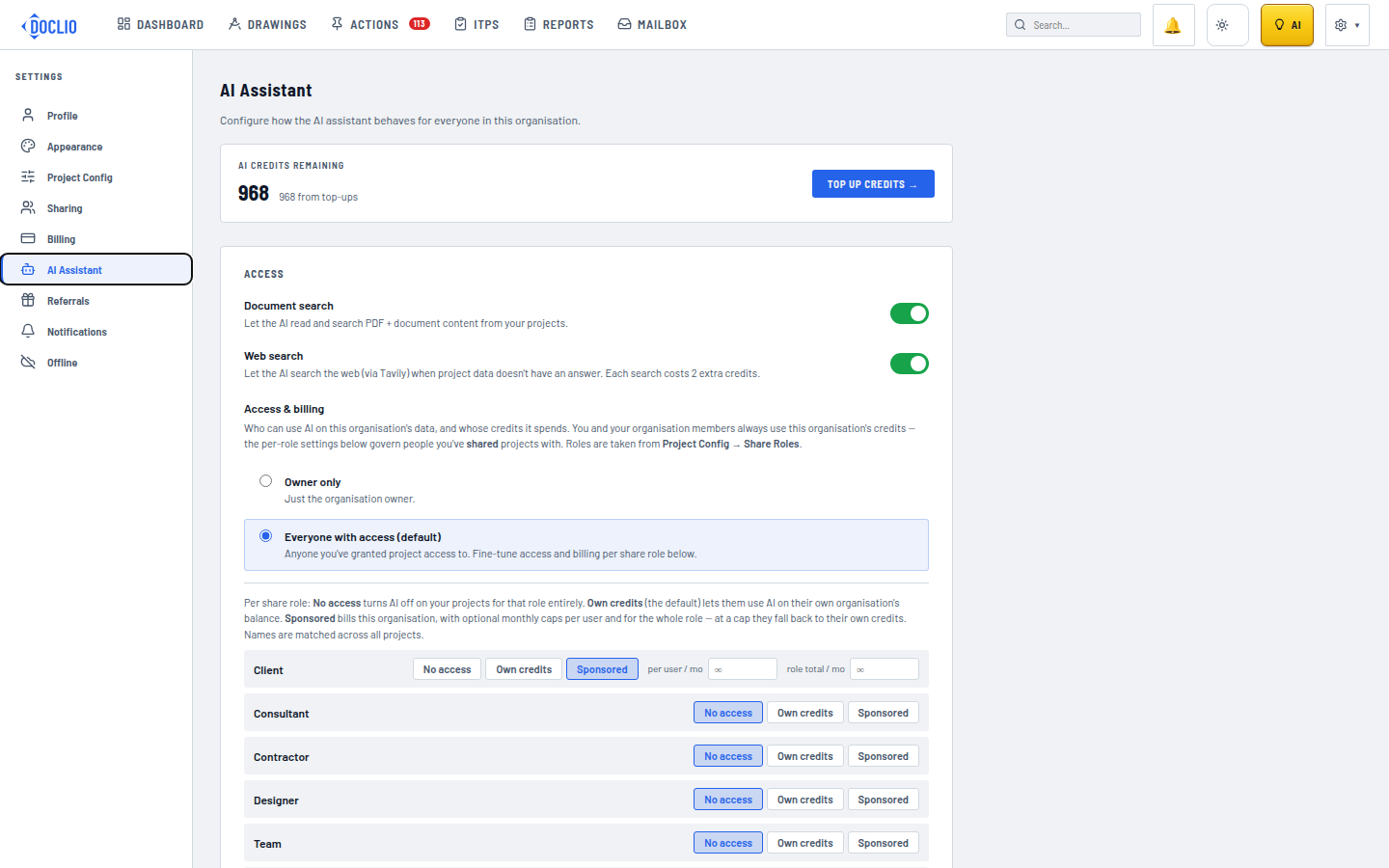
Document search, web search, and per-role access controls