Two Questions Every Shared Project Raises
When you share a project — with subcontractors, consultants, clients, anyone — the AI Assistant raises two separate questions: can they use AI on your project's data, and if so, whose credits does it spend? Doclio lets the project owner answer both, per share role.
Who This Applies To
These settings govern shared users — people who access your projects through the Share dialog. You (the organisation owner) and your organisation's members always use your organisation's credit balance, with no caps. Shared users are grouped by their share role (Team, Client, Contractor, etc. — set up in Project Config → Share Roles), and role names are matched across all your projects.
The Per-Role Settings
Open Settings → AI Assistant → Access & billing. First choose who can use AI at all:
- Owner only — just you. Nobody else sees a working AI assistant on your data.
- Everyone with access (default) — anyone with project access can use AI, governed by the per-role matrix below.
With the second option, each share role (plus an All other roles default row) gets one of three settings:
| Setting | What it means | Whose credits |
|---|---|---|
| No access | AI is switched off for that role on your projects entirely — even if they have plenty of their own credits. Their normal (non-AI) project access is unaffected, and they can still use AI on their own projects. | n/a |
| Own credits (default) | They can use AI on your project, paid from their own organisation's balance. | Theirs |
| Sponsored | You pay for their AI usage on your projects, optionally bounded by monthly caps (below). | Yours |
Use No access when you don't want a given audience running AI over your project data at all (confidentiality). Use Own credits when AI is fine but not on your tab. Use Sponsored to centralise the cost on one account — for example, covering your regular site team while clients stay on their own credits.
Sponsorship Caps
A sponsored role can carry two optional limits, both per calendar month:
- Per user / mo — the most any single sponsored user can spend of your credits in a month.
- Role total / mo — a shared bucket for everyone in that role combined.
Leave a cap blank for unlimited. When a user hits either cap, they are not blocked — their queries automatically switch to their own organisation's credits for the rest of the month. Caps reset at the start of each calendar month (UTC).
If someone holds more than one role across your projects (different shares), the most generous treatment applies: they have AI access if any of their roles allows it, and sponsorship uses the role with the most headroom first.
Seeing Who Spends Your Credits
Open Settings → Billing → AI CREDIT USAGE. The panel shows, month by month, every query billed to your organisation: who ran it, how many queries, how many credits, how much of that was sponsored usage, and when they last used the assistant. Use it to sanity-check spending before and after setting caps.
Shared users on Own credits don't appear in your panel — their usage bills their organisation, and it shows in their Billing page instead.
What Shared Users See
- Role set to No access — the assistant declines with a message saying their share role doesn't have AI access on this organisation's projects, and to ask the project owner.
- Sponsored, owner's balance empty — a message that the project owner's sponsored allowance has run out, with the option to continue on their own credits or try later.
- Own credits, balance empty — the normal out-of-credits prompt with top-up and upgrade options (see AI Assistant — Overview & Credits).
Need More Help?
If sponsored usage isn't appearing in your usage panel, or a role's setting doesn't seem to apply, please submit a support ticket with the project and role names. Every AI query is logged for billing purposes, so we can trace exactly which organisation was charged and why.
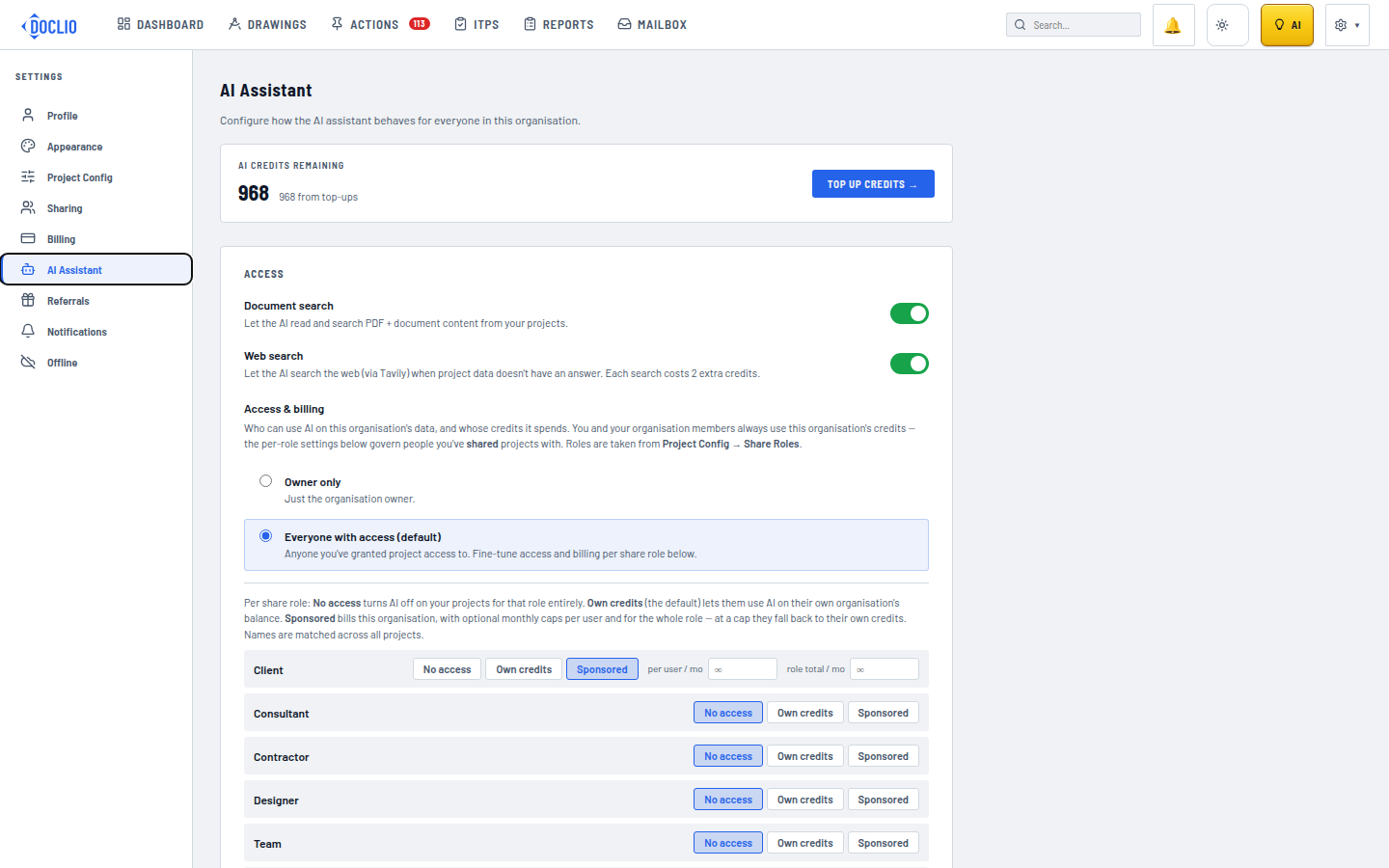
Configure No access / Own credits / Sponsored per share role