Last updated: May 2026
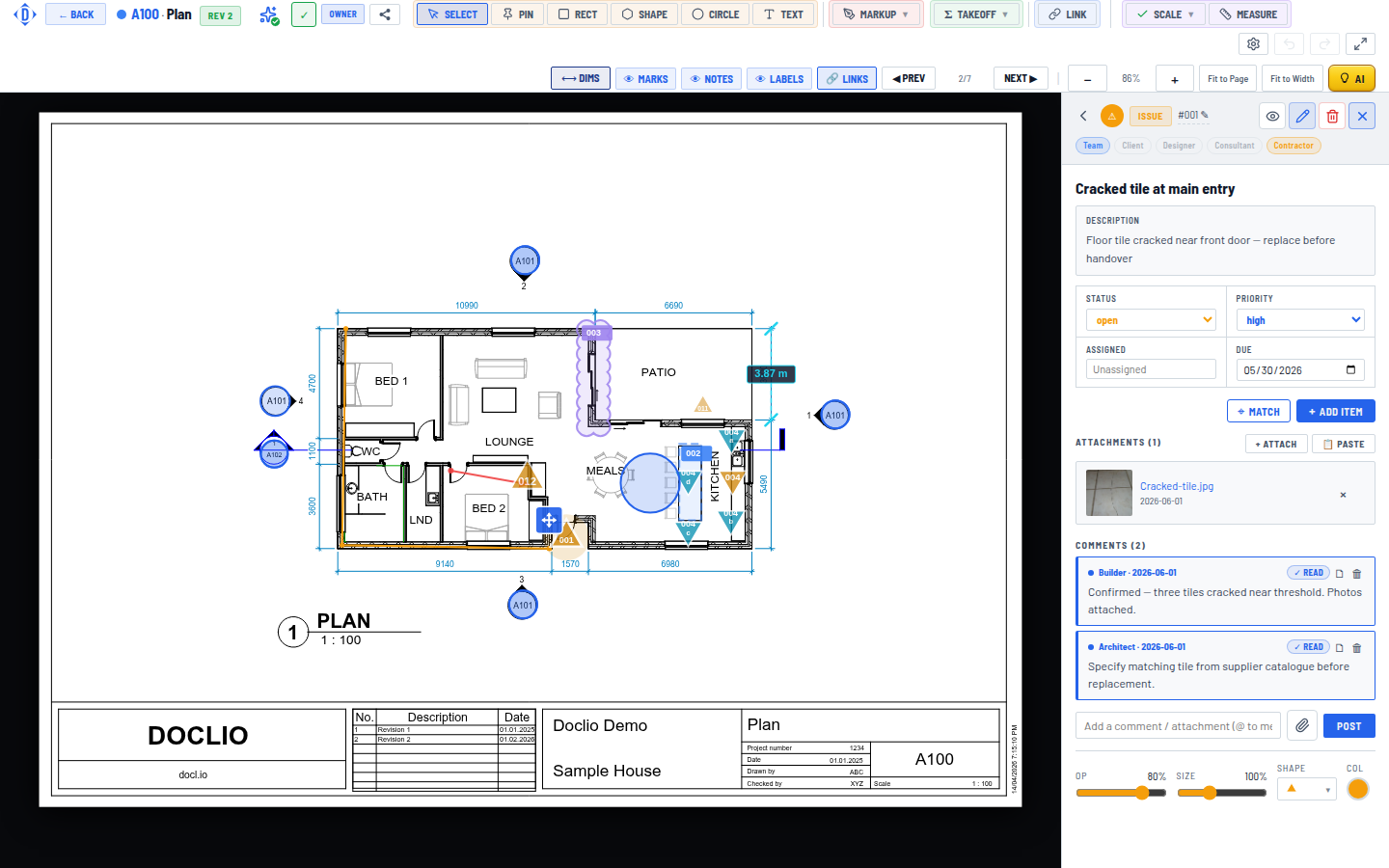
The MATCH tool is a click-to-find symbol counter that works directly on PDF vector data — no AI Vision involved. Click one instance of a symbol on the drawing, and the matcher returns every other location on the same page where a similar cluster of vector segments appears. Deterministic, zero AI credit cost, exact pixel placement.
How to Use It
- Open a drawing.
- In the drawing toolbar, click the MATCH tool (target icon ⌖). The cursor becomes a crosshair.
- Click directly on the centre of ONE instance of the symbol you want to count.
- Pins appear near-instantly at every matching location on the page.
- A fixed panel appears at the edge of the screen showing DRAFT · N matches, a confidence slider, and SAVE / DISCARD buttons. The panel stays put while you zoom and pan, so you can inspect matches up close with the controls still reachable.
- Click SAVE to commit the matches as a single annotation group. Click DISCARD to drop them.
Too many or too few matches?
Use the Confidence slider on the result panel. Dragging it re-runs the matcher live, so you can watch pins appear and disappear as you adjust. Lower casts a wider net (more matches, more false positives); higher is stricter (fewer matches, may miss slightly different instances). Nudge it until the pin set looks right, then save.
What's a "match"
The matcher reads the actual lines that make up the symbol you clicked — how many there are, how long they are, what shape they form — and finds every place on the page with the same fingerprint. Overlapping hits are collapsed so each symbol gets exactly one pin.
When It Works Well
- Vector PDFs — drawings exported from AutoCAD, Revit, ArchiCAD, BricsCAD, MicroStation. Most CAD tools export clean vector PDFs.
- Repeated symbols drawn at the same scale and rotation. Downlights, GPOs, switches, doors, windows, furniture markers all match well.
- Distinctive shapes — symbols with a unique combination of segment count + size. A "double circle" downlight is unmistakeable; a generic 4-line square is not.
When It Doesn't Work
- Scanned/raster PDFs — no vector data to match against. Fall back to the AI Vision flow (Show me on drawing).
- Rotated symbols — a symbol drawn at 90° won't match an upright one. Most plan symbols are upright so this is rarely a problem; if you hit it, click an instance at the same rotation.
- Generic shapes — clicking a single line segment will match every line in the drawing of similar length. Click something with structure (a cluster).
- Symbols across multiple drawings — MATCH works per-page only. To count across drawings, use Doclio Estimator's AI flow with an exemplar.
MATCH vs Doclio Estimator (AI Takeoff)
| MATCH (vector) | AI Estimator (Vision) | |
|---|---|---|
| Cost | Free (no AI credits) | 3-30+ credits per query |
| Speed | Near-instant | 5-30 seconds |
| Placement precision | Exact (centroid of vector cluster) | Approximate (model spatial limit) |
| Count accuracy | Deterministic for repeated symbols | Varies — can miss items or include false positives |
| Works on | Vector PDFs only | Vector + scanned/raster PDFs |
| Rotation | Same rotation only | Rotation-tolerant |
| Cross-drawing | Single page only | Single-drawing only currently |
Rule of thumb: Try MATCH first. If your PDF is scanned, the symbols are rotated, or you only have an image (no actual symbol on this drawing) to match against, fall back to Estimator's AI flow.
What Happens When You Save
Saving creates a single annotation group: one "head" annotation representing the count, plus one child annotation per match (with a pin marker on the drawing). Same shape as an AI-saved takeoff — appears in the Actions list, can be edited, deleted, commented on, included in reports.
See also
Find similar symbols across a drawing from an annotation's detail panel