Managing Approvals on Annotations
Doclio supports approval workflows for annotations that require sign-off from one or more team members. This is commonly used for quality checks, safety inspections, and milestone sign-offs.
Creating an Approval
- Open a drawing and create a new annotation (or open an existing one)
- Set the Type to Approval — or any custom type with the approval workflow switched on in Settings → Project Config
- Fill in the annotation details (title, description, etc.)
- In the Approvers section, add the people who need to sign off:
- Select from the dropdown of shared users on the project
- Or type an email address manually
Approval Statuses
Each approver has one of three statuses:
- ✓ Approved — The approver has signed off
- ✗ Rejected — The approver has rejected the item (with optional comment)
- ⏳ Pending — Awaiting response
Responding to an Approval Request
- Open the annotation that requires your approval
- Review the details, attachments, and comments
- Click Approve (green) or Reject (red)
- If rejecting, you can add a comment explaining why
Your response is recorded immediately with a timestamp and your name.
Managing Approvers
Anyone with edit access to the annotation can:
- Add or remove approvers at any time
- Re-submit for approval — available on approvers who have rejected. It resets their status to pending and sends them a fresh email (e.g., after you've fixed what they rejected)
- View the full approval history with timestamps
Note: Approvers receive an email notification when they're added to an approval. They can respond directly from the app or via the email link.
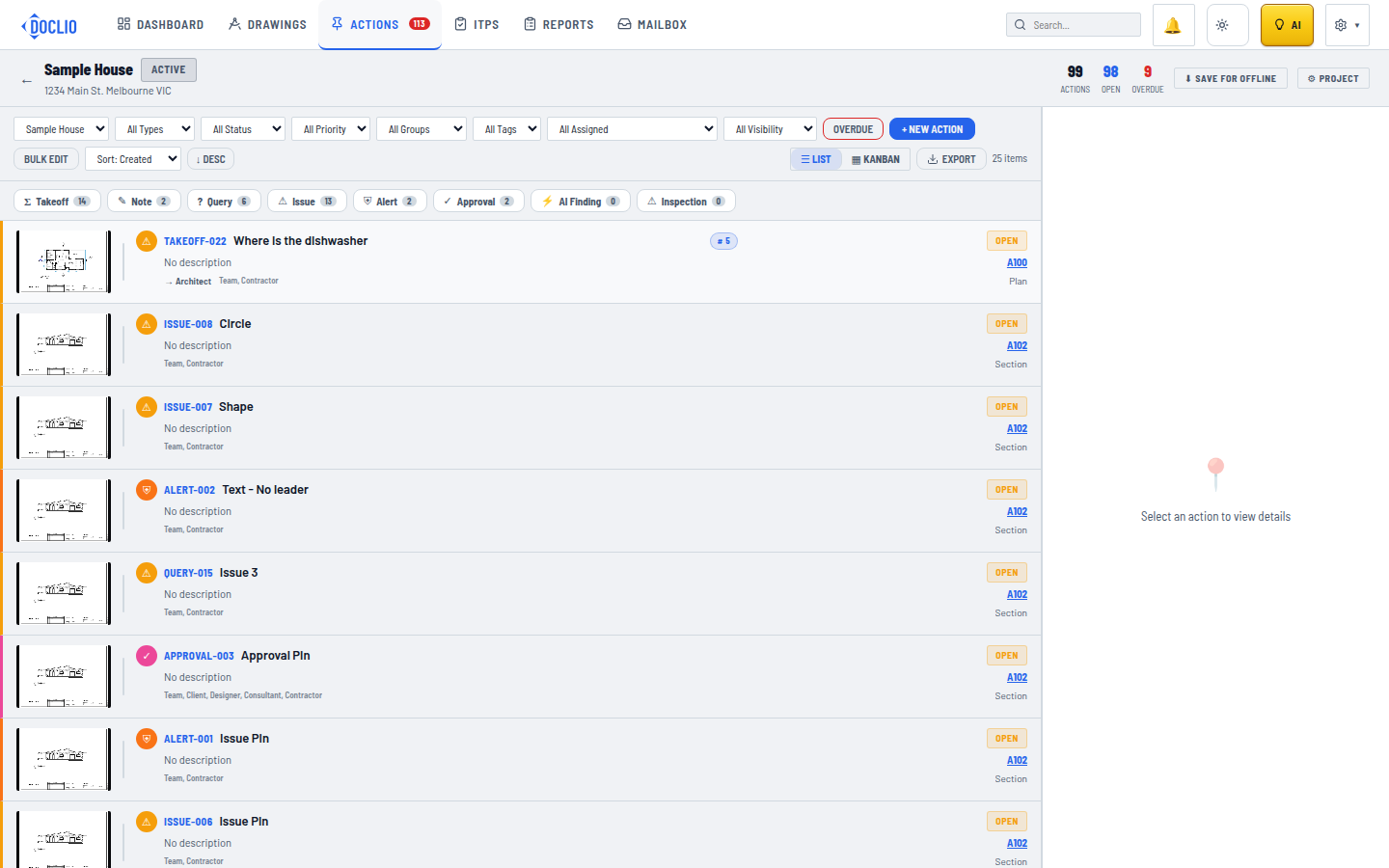
Approval items in the Actions list, filterable by type