Assign Responsibility and Deadlines
Assigning annotations to team members and setting due dates ensures accountability and helps track overdue items.
Assigning to a Person
- Open the annotation detail panel
- Find the Assigned field
- Pick a project member from the dropdown, or type any email address
- You'll be asked whether to email them about the assignment now or skip the notification
- They'll see the annotation when they log in (if they have project access)
Setting a Due Date
- In the annotation detail panel, find Due Date
- Click to open the date picker
- Select a deadline
Overdue Tracking
When an annotation passes its due date without being completed:
- An OVERDUE badge appears in red
- The annotation is counted in the Overdue summary on the Dashboard
- You can filter the Actions view to show only overdue items using the OVERDUE filter button
Bulk Editing
The Bulk Edit feature in the Actions view covers changing visibility and deleting items only. Status, priority, and assignment are changed per annotation in its detail panel.
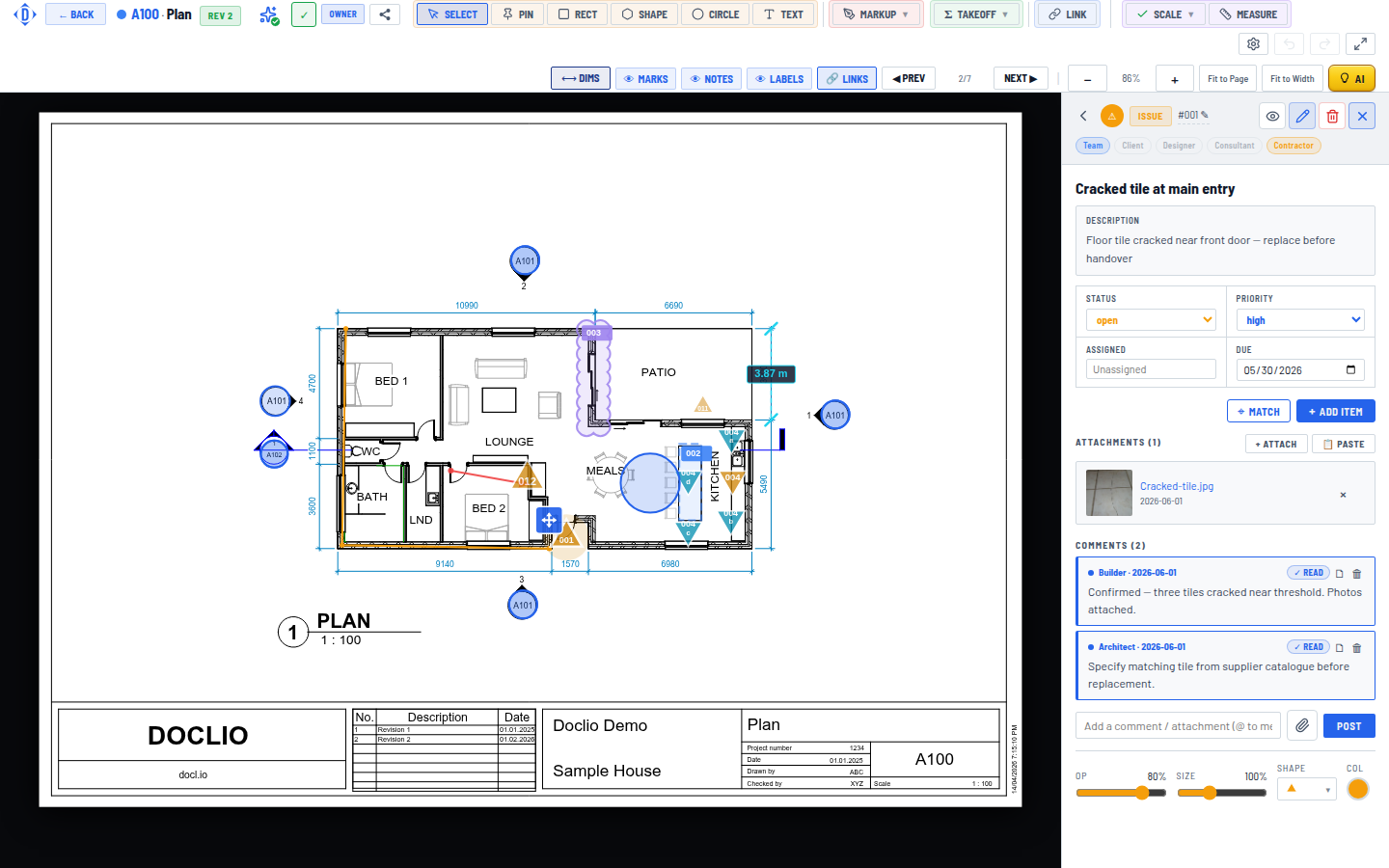
Assign a person and set a due date on any annotation