Collaborate on Annotations
Every annotation has its own comment thread and file attachment area, making it a self-contained discussion for that specific issue.
Adding Comments
- Open an annotation (click it in the Actions view or on the drawing)
- Scroll to the Comments section at the bottom of the detail panel
- Type your comment and click POST
- Comments show the author name, date, and are visible to anyone with access
Adding Attachments
- In the annotation detail panel, find Attachments
- Click + Attach
- Select files from your computer (photos, PDFs, documents) — up to 25MB per file
- Attachments are uploaded and displayed as thumbnails
You can also paste a screenshot straight in — copy it, then press Ctrl/Cmd+V with the annotation open, or use the PASTE button. Handy for marking up a photo or grabbing a detail from another document.
Common Attachment Use Cases
- Site photos — Photograph a defect and attach it to the annotation
- Reference documents — Attach specs or detail drawings
- Proof of completion — Attach a photo showing the issue has been resolved
Unread Indicators
When someone adds a comment to an annotation you haven't seen, the comment count on that annotation in the Actions list shows as an unread badge in the accent colour.
Tip: Use comments to maintain a complete audit trail. Rather than discussing issues over email, keep the conversation attached to the annotation so anyone can see the full history.
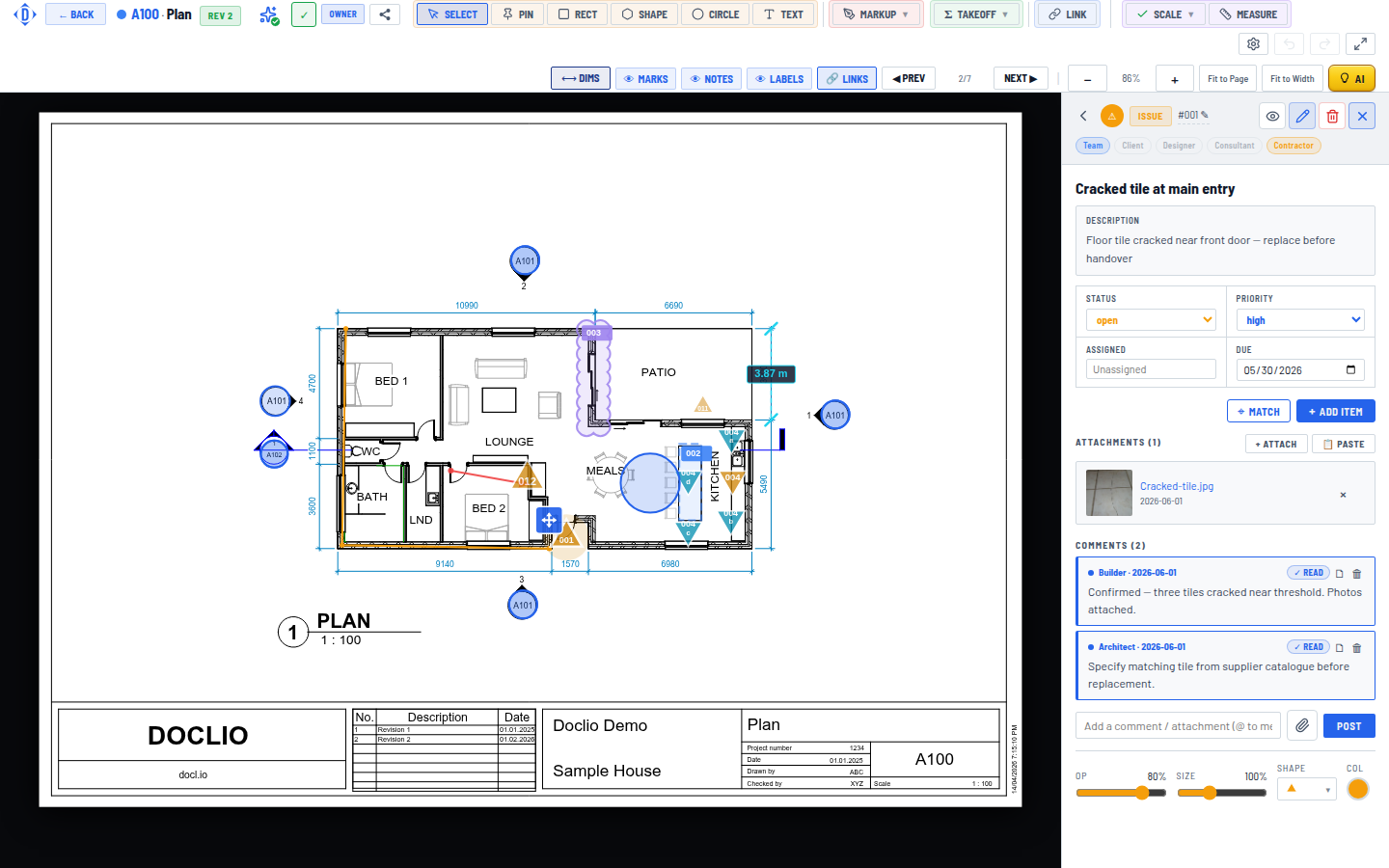
Threaded comments with read receipts, plus file attachments