Find What You Need
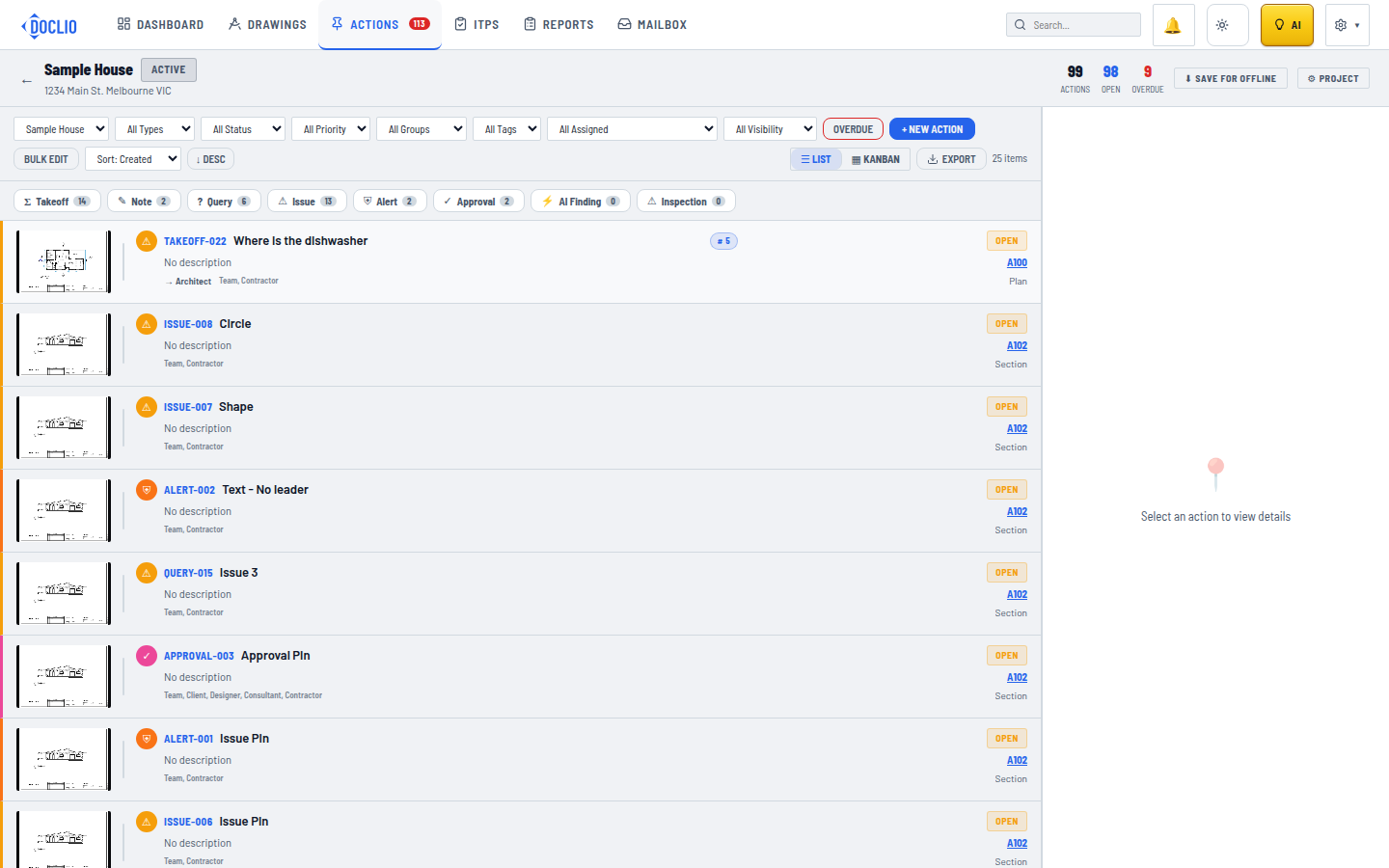
Actions view showing the comprehensive filter bar and annotation type chips
The Actions view filter bar narrows hundreds of annotations down to the handful you need right now.
Actions View Filters
The Actions view (accessible from the top nav or within a project) has a comprehensive filter bar:
- All Projects — Filter by specific project (global view only)
- All Types — Filter by annotation type (your project's type list)
- All Status — Filter by status (your project's status list)
- All Priority — Filter by Critical, High, Medium, or Low
- All Groups — Filter by drawing discipline/group
- All Tags — Filter by drawing tags
- All Assigned — Filter by assigned person
- All Visibility — Filter by visibility level
- OVERDUE — Quick toggle to show only overdue items
Type Chips
Below the filter bar, coloured chips show the count of each annotation type. Click a chip to filter to that type.
Sorting
Use the Sort dropdown to order by Created, Modified, Due Date, Priority, Status, Title, or Assigned, then flip the direction with the ASC / DESC toggle next to it.
Drawing-Level Filtering
When viewing a specific drawing, the annotations panel on the right also has filter chips for type and status, scoped to that drawing only.
Global Search
Click the Search icon in the top navigation to search across all projects, drawings, and annotations by keyword.