Change Your Plan
You can upgrade, downgrade, or switch between monthly and annual billing at any time.
How to Upgrade
- Click your email in the top-right corner — your current plan badge sits in the dropdown, under your email
- Click the plan badge, or go to Settings → Billing
- Select the plan you want
- Choose monthly or annual billing
- Complete checkout via Stripe (secure payment)
What Happens When You Upgrade
- Your new limits take effect immediately
- You're charged a prorated amount for the remainder of the current billing period
- All your existing data is preserved
Downgrading
You can downgrade at any time. If your current usage exceeds the lower plan's limits:
- Existing data is preserved
- You won't be able to create new projects/drawings until you're within limits
- Consider archiving projects to free up active project slots
Managing Your Subscription
Click the plan badge in the user dropdown or go to Settings → Billing to:
- View your current plan and usage
- Update payment method
- View invoice history
- Cancel or change your subscription
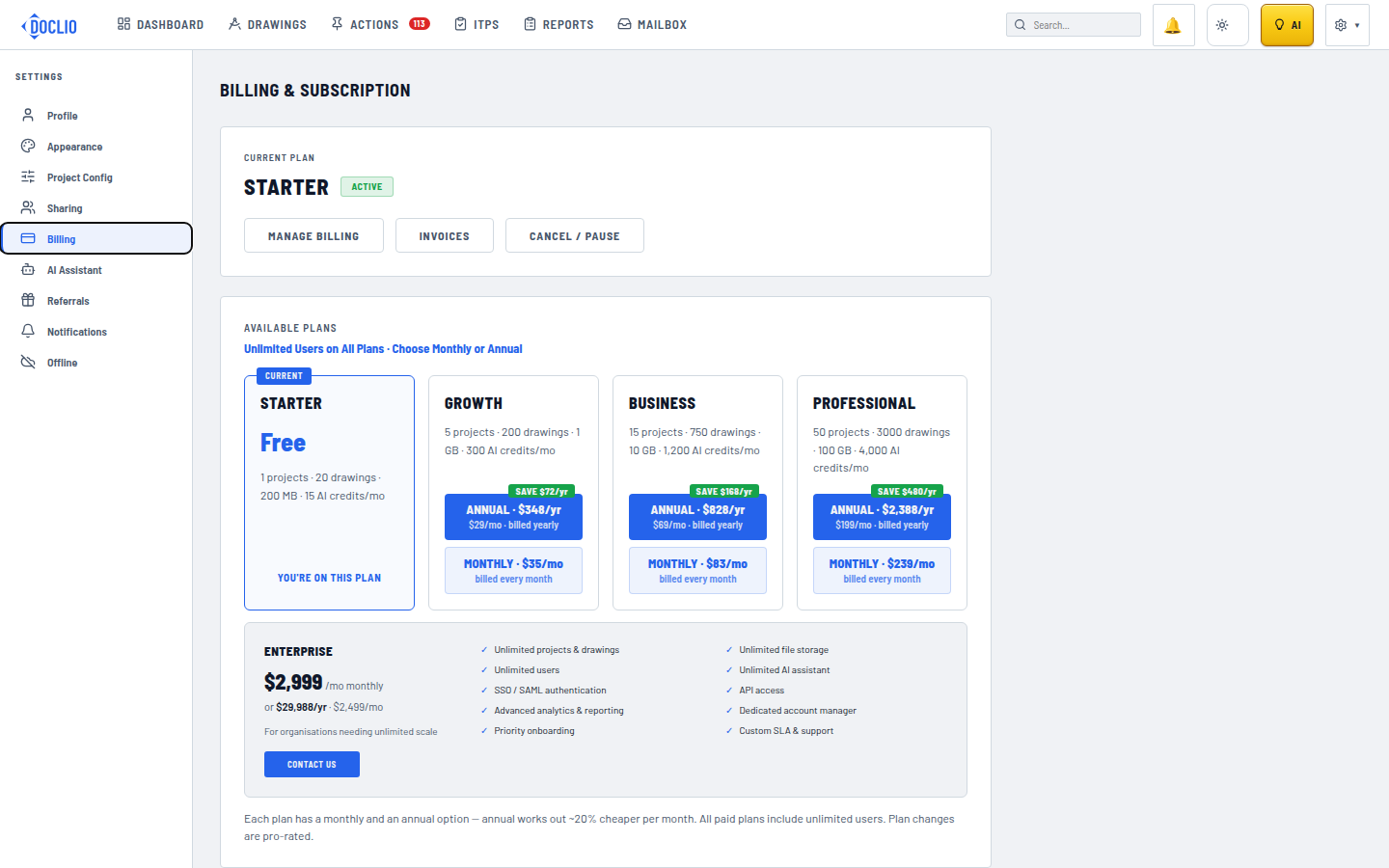
Change plans from Settings → Billing