Visual Revision Comparison
When a drawing has multiple revisions, compare them on screen to see exactly what changed between issues.
Starting a Comparison
- Open a drawing that has multiple revisions
- In the right-hand panel, scroll to REVISION HISTORY
- Click the COMPARE button next to any superseded revision
- The comparison toolbar appears at the top of the drawing
Slider Mode
The default comparison mode shows a draggable vertical divider that reveals the old revision on the left and the current revision on the right:
- Drag the circular handle left or right to reveal more of either revision
- Labels at the top corners show which revision is on each side
- Works with both mouse and touch on mobile devices
Slider mode is best for side-by-side layout comparisons — checking if walls moved, rooms changed size, or elements were added or removed.
Difference Mode
Click DIFFERENCE in the comparison toolbar to switch to difference blend mode. This overlays the two revisions using a visual difference algorithm:
- Black areas — identical between revisions (no change)
- Bright/coloured areas — something changed (the brighter, the more different)
Use the opacity slider in the toolbar to control the blend strength. At 0% you see only the current revision; at 100% you see the full difference overlay.
Comparison Toolbar Controls
| SLIDER / DIFFERENCE | Toggle between comparison modes |
| SWAP | Swap which revision is the base and which is the overlay |
| HIDE / SHOW PINS | Toggle annotation pins visibility during comparison |
| COLOURS ON / OFF | In Difference mode, toggle the colour-tinted difference overlay on or off |
| Opacity Slider | Adjust the overlay blend in Difference mode (0–100%) |
| EXIT | Close comparison mode and return to normal view |
Tips for Effective Comparison
- Zoom in to specific areas of interest before comparing — both modes work at any zoom level
- Use HIDE PINS to get a clean comparison without annotation overlays
- In Difference mode, set opacity to around 50% for the most balanced view of changes
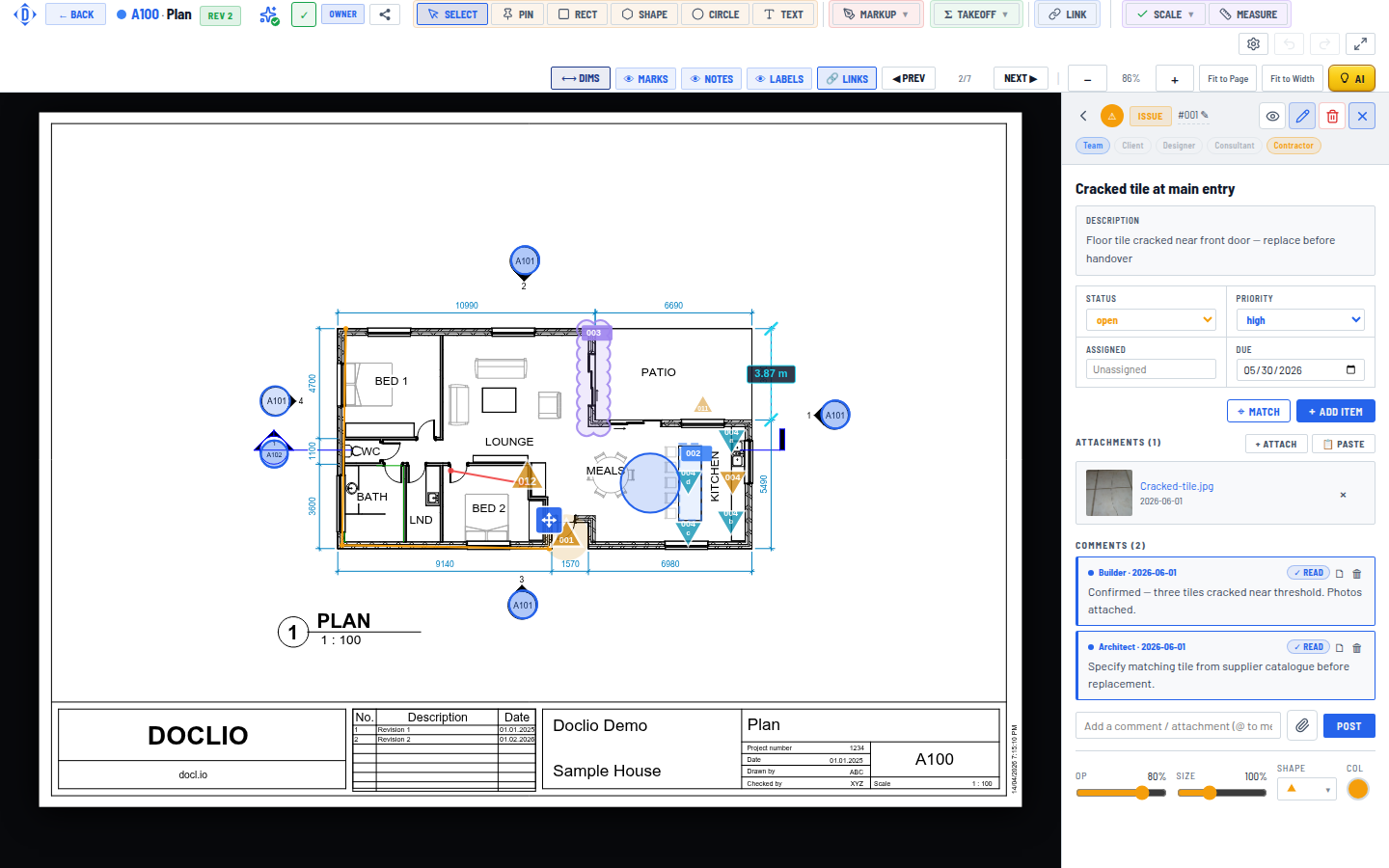
Compare and delete superseded revisions from the Drawing Viewer
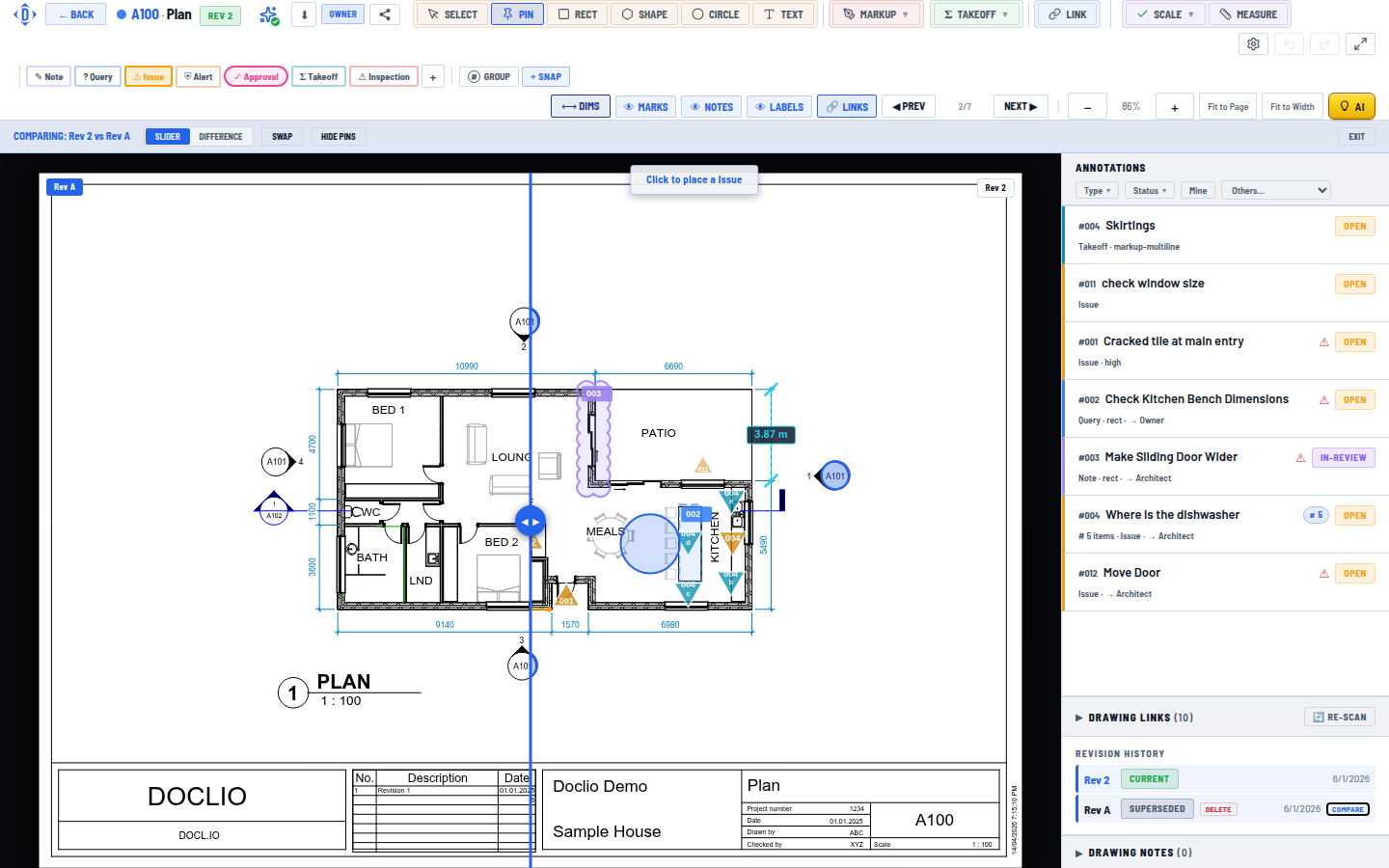
Slider, difference, and swap controls comparing Rev A against Rev 2 on the same sheet