Drawing Revisions
Construction drawings go through multiple revisions as designs evolve. Doclio tracks every revision, lets you view previous versions, and preserves all annotations across updates.
How Revisions Work
Each drawing has a current revision (shown as a badge in the toolbar, e.g., REV 0B) and a revision history visible in the right-hand side panel. When you import a new revision of an existing drawing:
- The previous revision is automatically marked as superseded
- The new revision becomes current
- All existing annotations are preserved on the drawing
- The full revision history is maintained for reference
Importing Updated Revisions
The easiest way to update revisions is through the import wizard:
- Click + ADD Drawings in the drawings toolbar
- Upload or link your updated drawing set
- Doclio automatically matches drawings by drawing number
- Each card shows the revision status:
- NEW — drawing does not exist yet
- UPDATE — newer revision detected (e.g., Rev A → Rev B)
- OLDER — imported revision is older than the existing one
- REPLACE — same revision number, new file (re-uploading a corrected sheet)
- Click IMPORT N DRAWINGS to proceed
Conflict Review
If any drawings have revision conflicts (e.g., importing an older or same-numbered revision over an existing one, or updating drawings that have annotations), Doclio shows a conflict review dialog before proceeding. You can:
- Review all conflicts in a single list
- See how many annotations each drawing has
- Select or deselect individual drawings to import — OLDER and REPLACE pages are skipped unless you tick them, which forces the replacement
- Use Select All or Select None for bulk actions
Viewing Previous Revisions
You can view any previous revision of a drawing:
- Open the drawing in the viewer
- Scroll down in the right-hand panel to REVISION HISTORY
- Click any superseded revision to load it — an amber bar appears confirming you are viewing an older version
- Click BACK TO CURRENT to return to the latest revision
Revision Numbering
Doclio supports multiple revision numbering schemes:
- Letters: A, B, C, D...
- Numbers: 1, 2, 3, 4...
- Alphanumeric: 0A, 0B, 1A, 1B... (common in construction)
The system correctly sorts all formats, including mixed alphanumeric revisions like 0A → 0B → 1A → 1B.
Best Practices
- Use consistent drawing numbers across revisions (e.g., A100 Rev A → A100 Rev B)
- Review open annotations after importing a new revision — some may have been resolved by design changes
- Use the Compare feature to visually check what changed between revisions
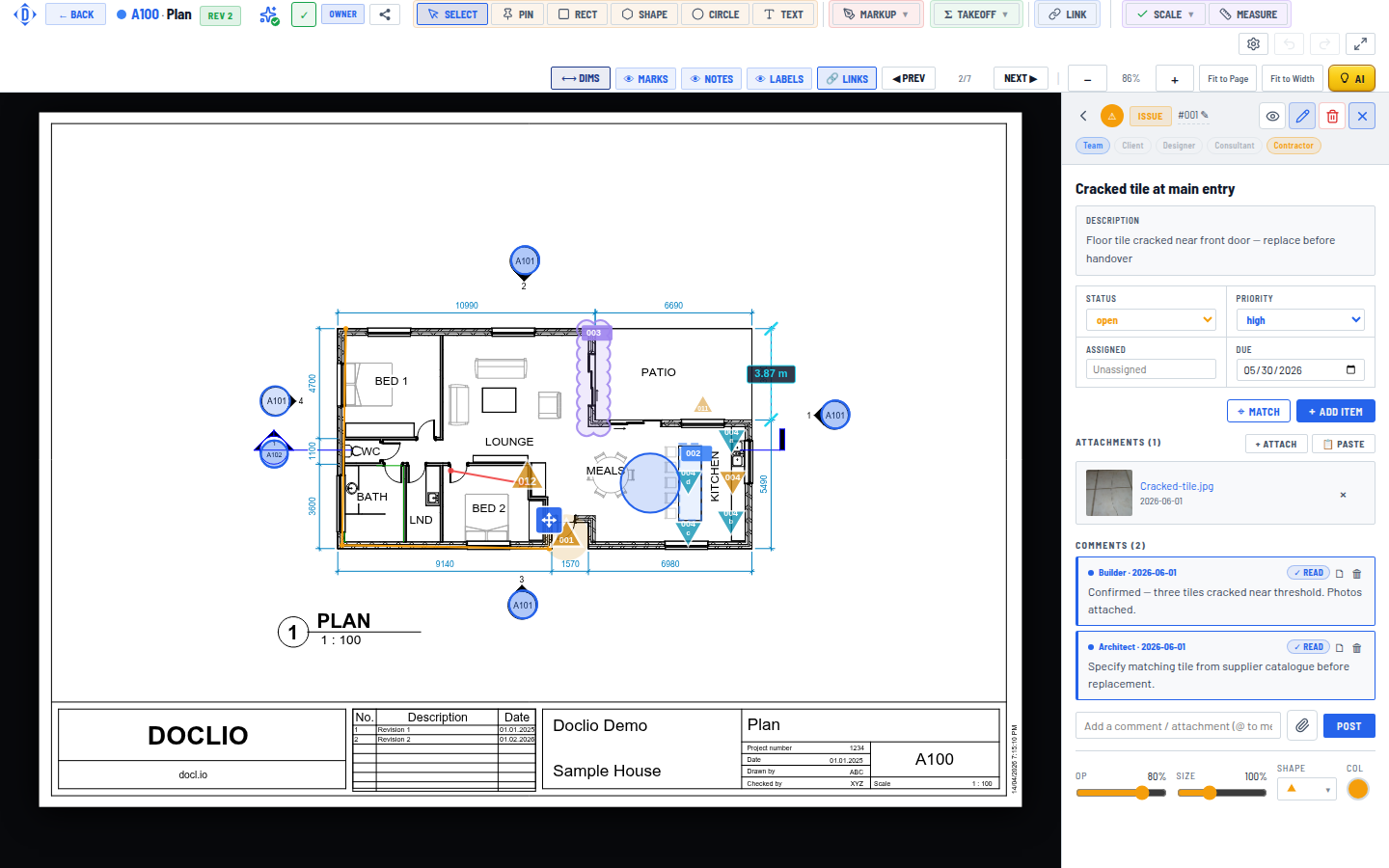
Current and superseded revisions, shown bottom-right in the Drawing Viewer
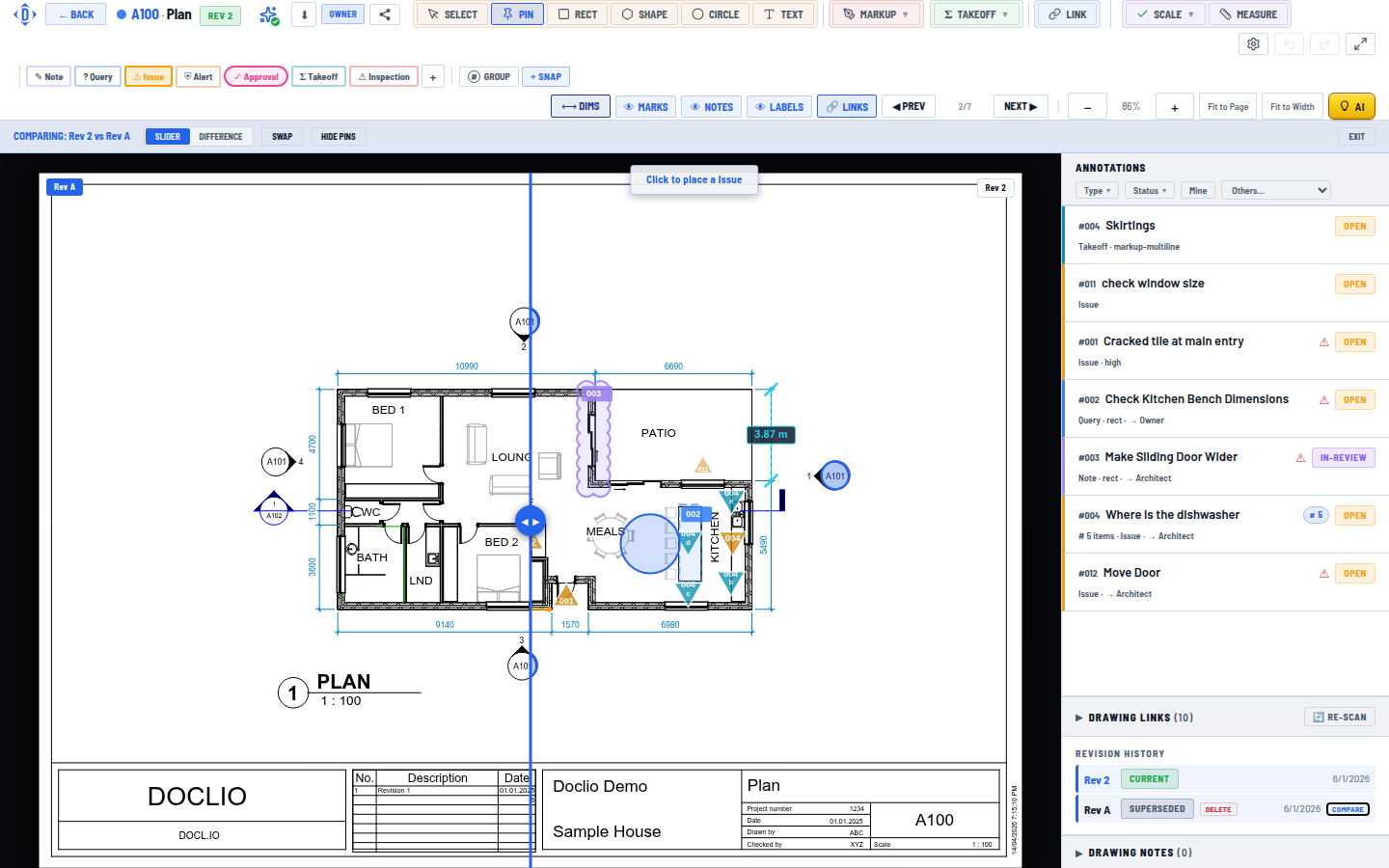
The COMPARE button on a superseded revision opens this slider view