Tagging Drawings
Tags provide a flexible way to categorise and filter drawings beyond the group/discipline structure.
Adding Tags to Drawings
- In the drawing gallery, find the + Tag button on any drawing card
- Click it to add an existing tag or create a new one
- Tags are project-level — once created, they're available for all drawings in the project
Managing Tags
The Tags section in the sidebar shows all tags for the current project. Click any tag to filter the gallery. The filter is multi-select — pick several tags to narrow to drawings carrying all of them, and click Clear to reset.
Tag Ideas
- Building levels (Ground Floor, Level 1, Level 2, Roof)
- Document types (Detail, Schedule, Diagram)
- Status labels (For Construction, Preliminary, Superseded)
- Custom categories specific to your workflow
Tip: Tags complement groups — use groups for discipline organisation and tags for cross-cutting categories like building levels.
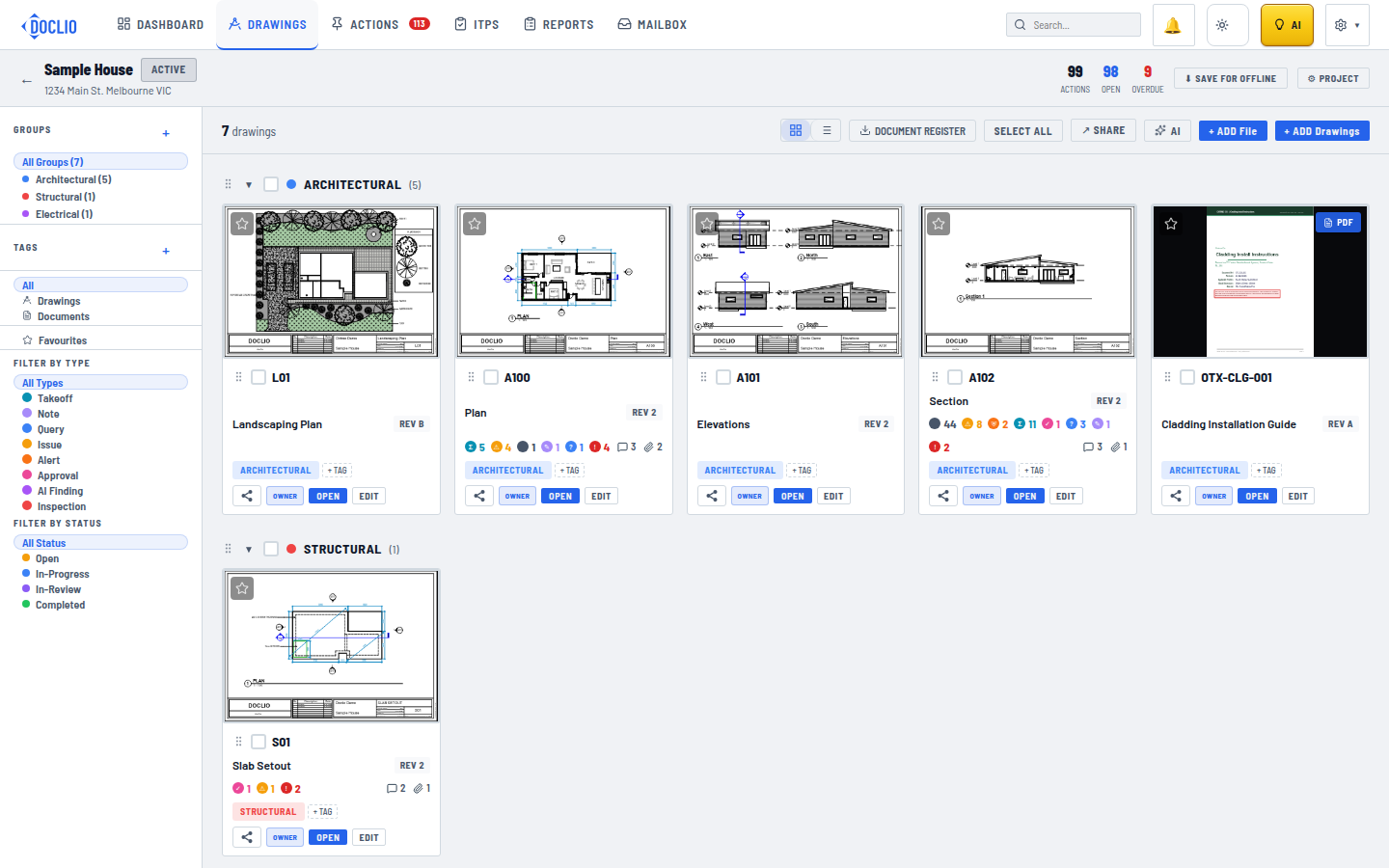
Tag filters in the Drawings sidebar