Customise Project Settings
Every project in Doclio can be configured with custom annotation types, statuses, disciplines, and tags.
Accessing Project Configuration
- Open your account menu (top right) → Settings
- Click the Project Config tab
- Select the project you want to configure
Disciplines / Groups
Disciplines (also called groups) organise your drawings into categories like Architectural, Structural, Electrical, etc.
- Click Add to create a new discipline
- Give it a name and optional colour
- Drag the handle to reorder disciplines
- Drawings assigned to a discipline will be grouped together in the gallery
Custom Annotation Types
New projects start with Note, Query, Issue, Alert, and Approval, plus special AI Finding and Takeoff types. You can add your own:
- Click Add in the Annotation Types section
- Enter a name, choose a colour, and select an icon
- New types appear in the type dropdown when creating annotations
Custom Statuses
The default statuses are Open, In Progress, In Review, and Completed. You can customise these:
- Click Add in the Statuses section
- Enter a name and choose a colour
- Drag to reorder — the order here is the order shown in dropdowns and filters
- Mark one status as the default for new annotations
Tags
Tags let you add custom labels to drawings for easy filtering:
- Create tags like "Priority", "Client Approved", "Under Review"
- Apply tags to drawings in the gallery
- Filter drawings by tag to find what you need quickly
Project Configuration
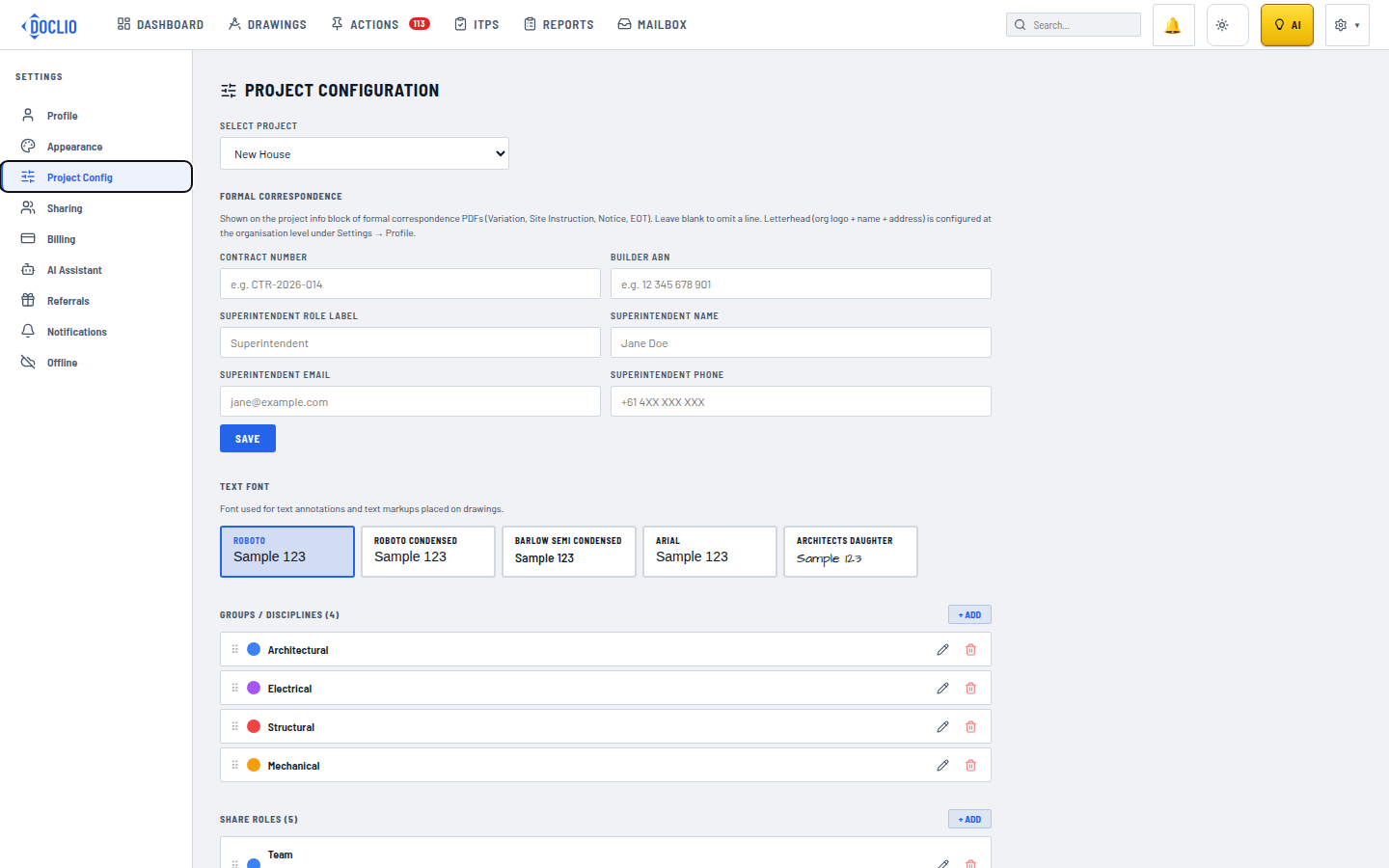
Formal correspondence details
Project Config also has a Formal Correspondence section for the details that appear on formal report and PDF letterheads — the contract number, builder ABN, and the superintendent's name, email, and phone. Fill these in if you issue formal correspondence; they're optional otherwise.
The letterhead itself (organisation logo, name, and address) is set at the organisation level under Settings → Profile.
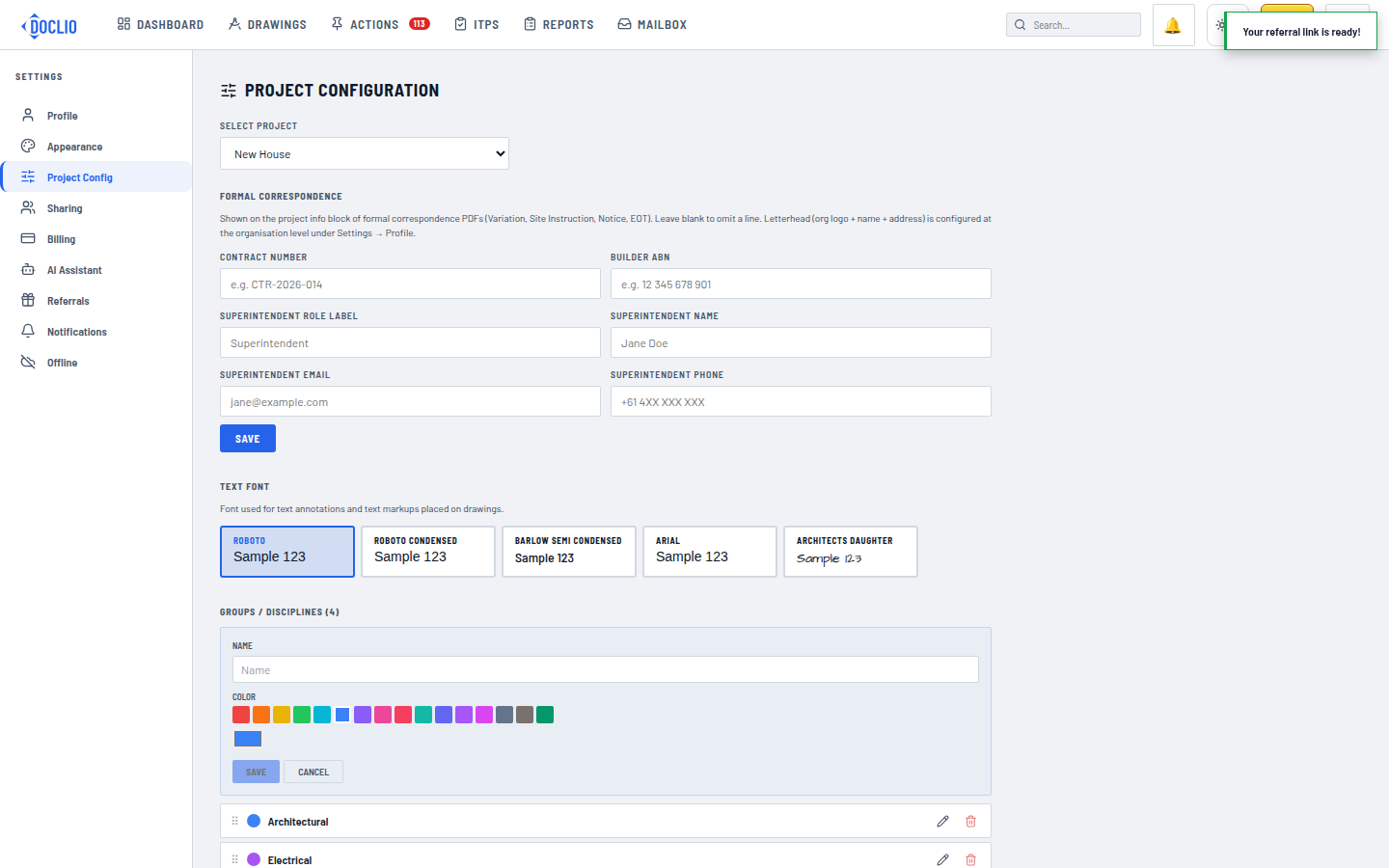
Name it, pick a colour, and it's immediately available for filtering drawings