Watch: Annotations, Markups & Takeoffs — a short video walkthrough of this topic in the video gallery.
Annotate Your Drawings
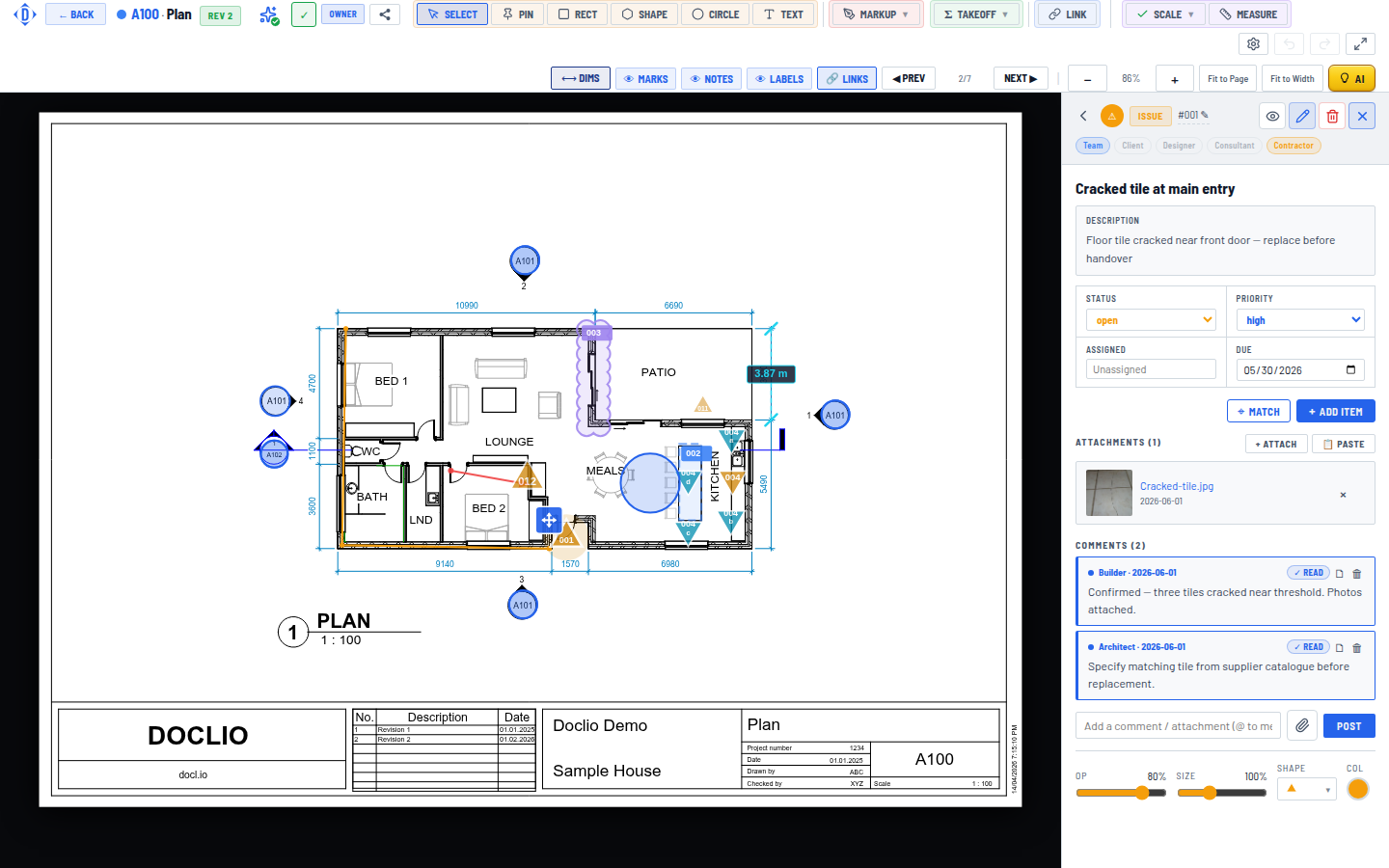
An annotation detail panel showing type, status, priority, attachments, and comments
Annotations are the core of Doclio. They let you mark up drawings to track defects, raise queries, log notes, flag issues, and manage approvals — all pinned to the exact location on the drawing.
Opening the Drawing Viewer
Click on any drawing thumbnail in the gallery to open the Drawing Viewer. You'll see:
- The drawing displayed at full size
- A toolbar at the top with annotation tools
- An annotations panel on the right
Creating a Pin Annotation
- Click the Pin tool in the toolbar
- Click anywhere on the drawing where you want to place the annotation
- A form will appear — fill in the details:
- Title — Brief description (e.g., "Cracked tile at main entry")
- Type — Select from Note, Query, Issue, Alert, or Approval
- Status — Defaults to Open
- Priority — Critical, High, Medium, or Low (defaults to Medium)
- Due Date — Optional deadline
- Description — Detailed notes about the issue
- Assigned To — Assign to a team member by email
- Click Save
Shape Annotations
In addition to pins, you can draw shapes to highlight areas:
- Rectangle — Draw a box around an area
- Circle — Highlight a circular area
- Shape — Draw a freeform polygon
Click the shape tool, then click and drag on the drawing to create the shape. The annotation form will appear just like with pins.
Annotation Types
| Type | Use For |
|---|---|
| Note | General observations, reminders |
| Query | Questions that need an answer |
| Issue | Problems or defects found on site |
| Alert | Safety or urgent items that need immediate attention |
| Approval | Items requiring formal sign-off |
Tip: You can customise annotation types and statuses per project in Settings → Project Config.
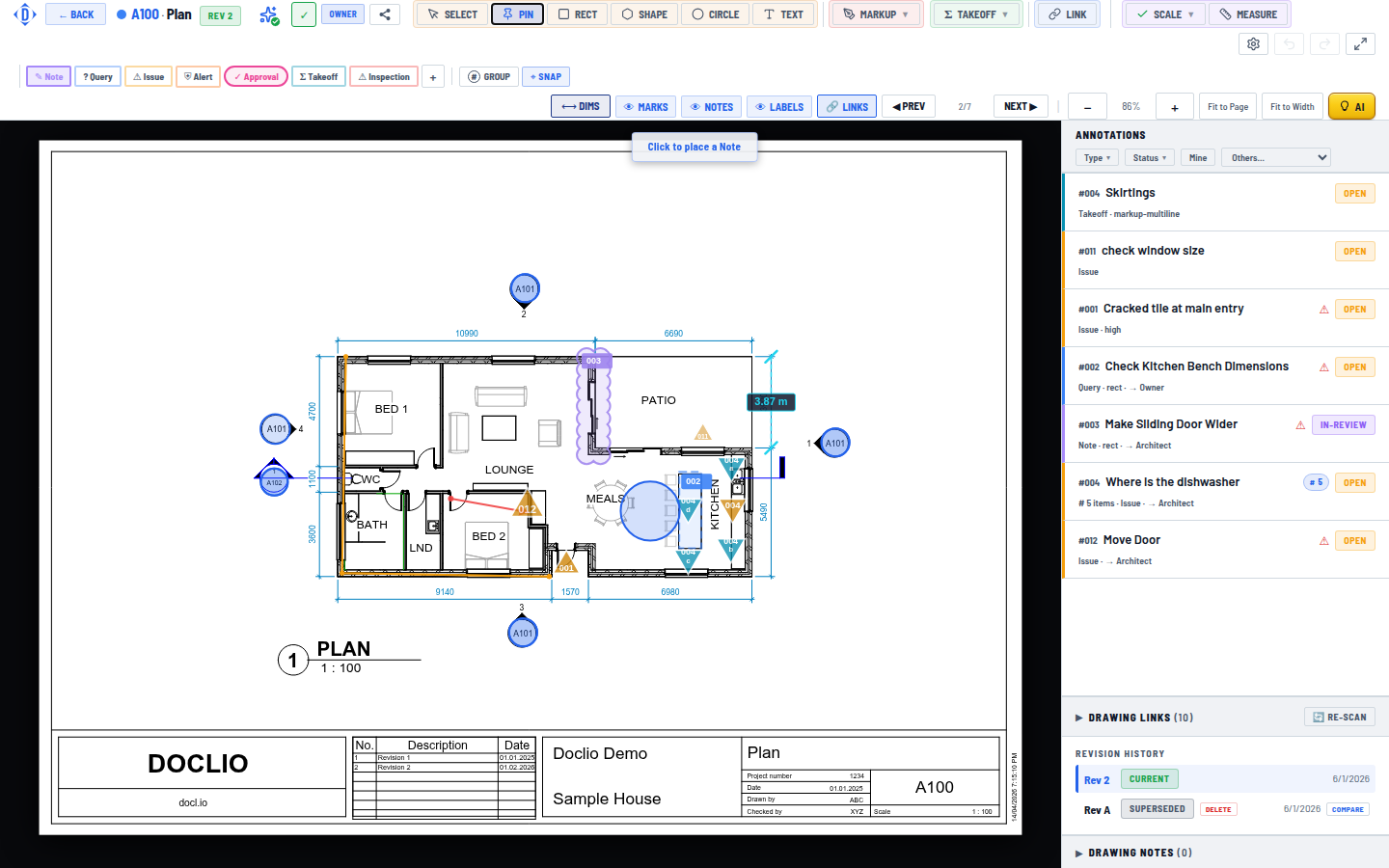
Pick PIN and a type — Note, Query, Issue, Alert, Approval, Takeoff, or Inspection