Last updated: June 2026
Beyond the sign-off matrix, ITP tasks carry their own evidence and discussion, support bulk editing, and roll up into shareable reports.
Evidence & comments (per task)
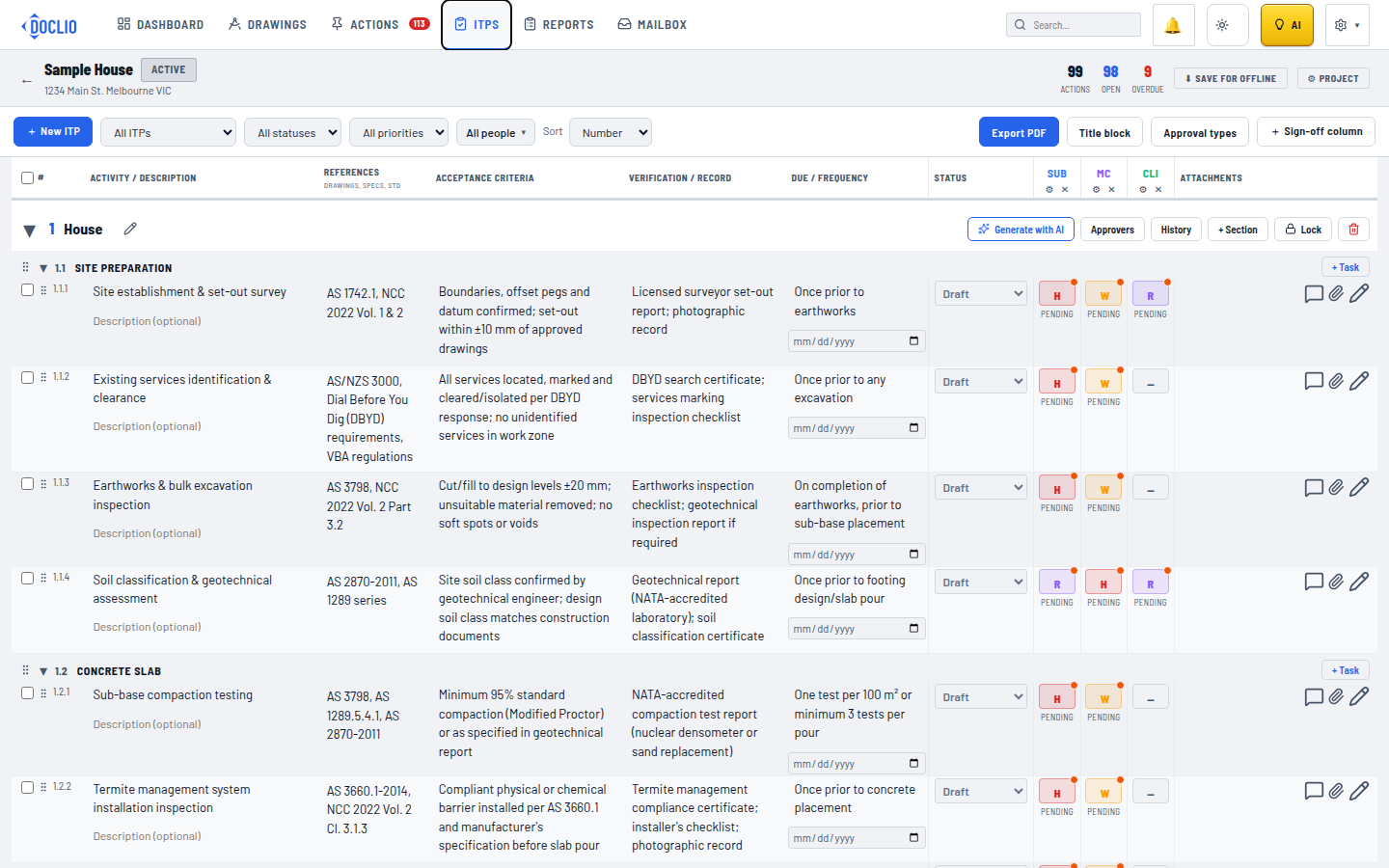
Every task has an Attachments column showing thumbnails of its evidence — site photos, test certificates, delivery dockets. Attachments are held per row, against the individual inspection.
- The combined comments & files control on a row opens the task drawer, where the comment thread and attachments live together.
- You can attach files directly to a comment, so a note and its supporting photo travel together (e.g. "slump test passed — see docket").
- Thumbnails render inline in the register, so you can scan a plan's evidence at a glance without opening each task.
Bulk actions
Tick the checkbox on any set of rows to reveal the bulk bar. From there you can, across all selected tasks at once:
- Set an inspection (restraint) code for a chosen party — e.g. mark Hold for the Engineer on ten rows in one move.
- Send sign-off requests in bulk.
- Set status (e.g. flip a batch to Upcoming).
- Set a due date.
- Add a comment to every selected task.
Bulk actions are the fastest way to set up a freshly generated or imported register.
Creating an ITP report
The Create report button hands the ITP off to the Report Builder using an ITP template. The register's tasks become the report's item pool, each carried in with its sign-off summary (which parties signed, with which restraint codes).
From there an ITP report behaves like any other report: export to PDF, share via a link, or include it in a project report pack.
See also
- Inspection & Test Plans — overview & structure
- ITP sign-offs, restraint codes & approvals
- The Report Builder
Export PDF, Approvers, History, and Generate with AI