Last updated: June 2026
An Inspection & Test Plan (ITP) is the register that records what gets inspected on a project, against which acceptance criteria, by whom, and with what hold or witness points. Doclio gives every project its own ITP register, accessed from the ITPs tab (clipboard-check icon) in the project sidebar.
How the register is structured
The register is a single numbered table with three levels:
- ITP groups (e.g. 1 — Concrete Works) — the top-level plans. A project can have several. Each group can carry its own set of approvers (see below).
- Sections (e.g. 1.1 — Formwork) — headings that group related tasks within a plan. Add a task straight from the section title.
- Tasks / items (e.g. 1.1.1) — the individual inspection rows.
Numbering is automatic (group / section / task) so the register reads like a conventional ITP document.
What each task row holds
| Column | What it's for |
|---|---|
| Activity | The inspection or test being carried out. |
| Acceptance criteria | The standard the work must meet to pass. |
| Verification | How conformance is demonstrated (records, tests, certificates). |
| Due / Frequency | A due date, or a frequency such as "each pour" / "per level". |
| References (Drawings, Specs, Std) | Standards, spec clauses, and drawing numbers — as a document link, a URL, or plain text. |
| Status | Where the task sits in its lifecycle (see below). |
| Sign-off columns | One column per approving party, each carrying a restraint code. See Sign-offs & approvals. |
| Attachments | Evidence (photos, certificates) shown as thumbnails. See Evidence, comments & reports. |
Statuses and the Planned → Upcoming notice
Each task has a status from your project's ITP status set — the defaults are Draft, Planned, Upcoming, Submitted, Approved, Rejected, and Closed — shown colour-coded in the Status column. When an approval has been sent for a row, the status reads SENT.
Filtering and editing
A filter bar at the top of the register narrows by status and priority. All task fields are editable inline; click a row's expand control to open the task drawer for comments, attachments, and the full edit form. To add tasks quickly, use the Generate with AI button on a group to let AI draft them — see Generating ITPs from documents with AI.
See also
- ITP sign-offs, restraint codes & approvals
- ITP evidence, comments, bulk actions & reports
- Generating ITPs from documents with AI
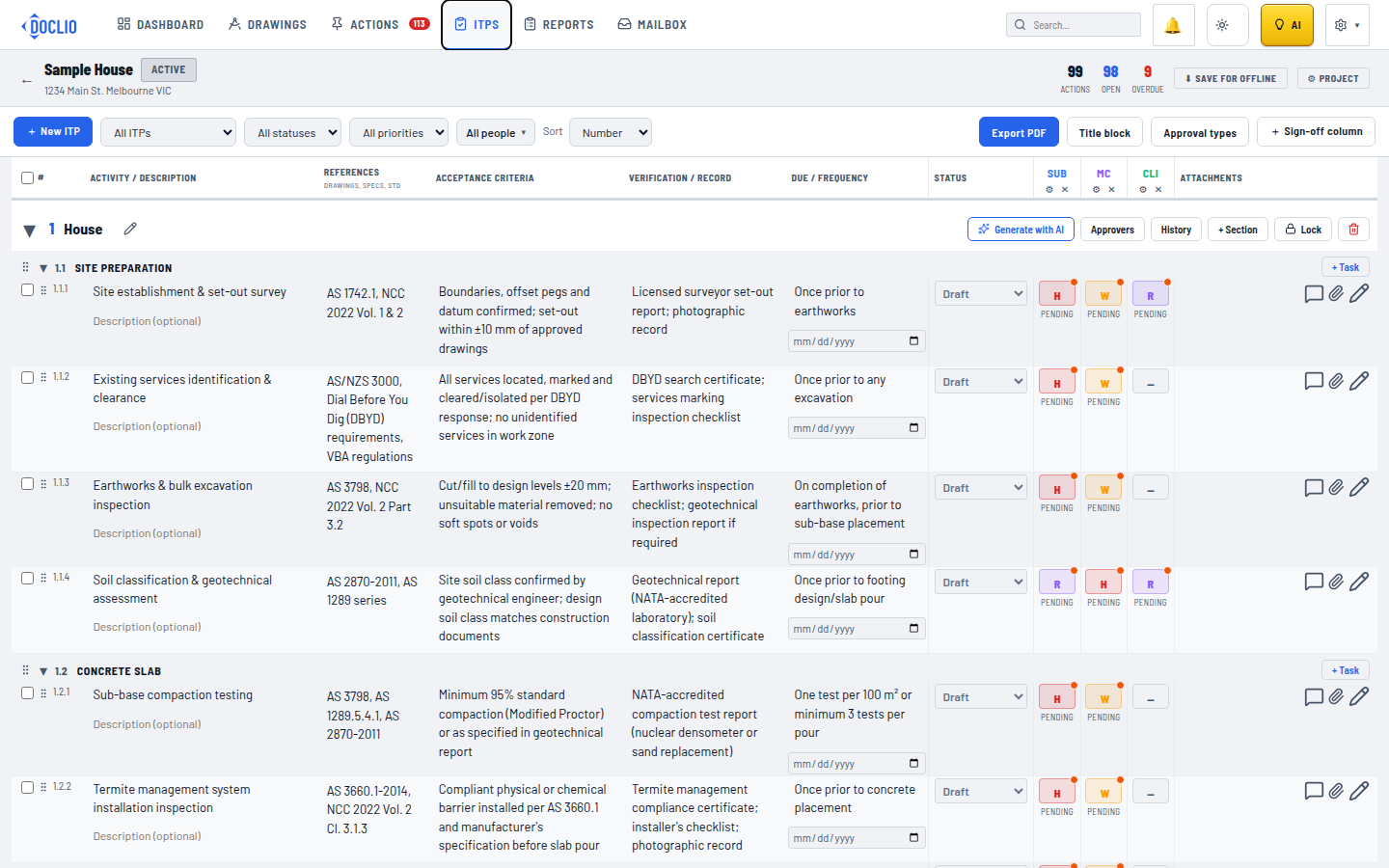
Sections, line items, references, acceptance criteria, and status