Last updated: June 2026
The right-hand side of the ITP register is a sign-off matrix: one column per approving party, and one cell per task. Each cell carries an independent restraint code and is approved on its own — so a single task can require a hold from one party and a witness from another, and each is tracked separately.
Restraint codes
Each cell shows a one-letter code (or a dash for none). The default set:
| Code | Meaning |
|---|---|
| H | Hold — work must stop until this party inspects and releases. |
| W | Witness — the party is given notice and may attend; work proceeds if they don't. |
| R | Review — the party reviews records/documentation rather than attending. |
| S | Surveillance — periodic monitoring at the party's discretion. |
| — | None — this party isn't involved in this task. |
Setting a cell
Click any matrix cell and pick a restraint code from the chip menu. The cell colours to match the code. Clear it to set the cell back to "none".
Approvers — per project and per ITP
The columns in the matrix are your parties (e.g. Architect, Structural Engineer, Client). Each party has one or more approvers — the people who actually receive and action sign-off requests.
- Per-project approvers — the default approvers used across the register.
- Per-ITP approvers — an individual ITP group can override the project list, so different plans can route to different people. Open the Approvers modal from the group to manage them.
Because parties carry their own approver lists, the same "Architect" column can resolve to different individuals on different ITPs — useful when consultants change between work packages.
Sending sign-off requests
Once a cell has a restraint code and the party has at least one approver, you can request the sign-off:
- Select the task(s) — use the row checkboxes for a bulk send, or the task drawer for a single one.
- Send the sign-off request. Doclio emails each relevant approver a secure link.
- The approver opens a public approval page — no Doclio login required — and approves or rejects, optionally with a comment.
This reuses the same approval pipeline as the rest of the app, so requests, reminders, and the audit trail behave exactly as they do for action approvals.
Reading cell state
Under each cell's code, a small status line tracks the request:
- SENT — a request has been emailed and is awaiting a response.
- PENDING — a code is set but not yet sent.
- ✓ SIGNED — the party approved (green).
- ✗ REJECTED — the party rejected (red); follow up and re-send once resolved.
Each party/cell is independent, so a task is only fully signed off when every required cell on its row is green.
See also
- Inspection & Test Plans — overview & structure
- ITP evidence, comments, bulk actions & reports
- Approvals & the public approval page
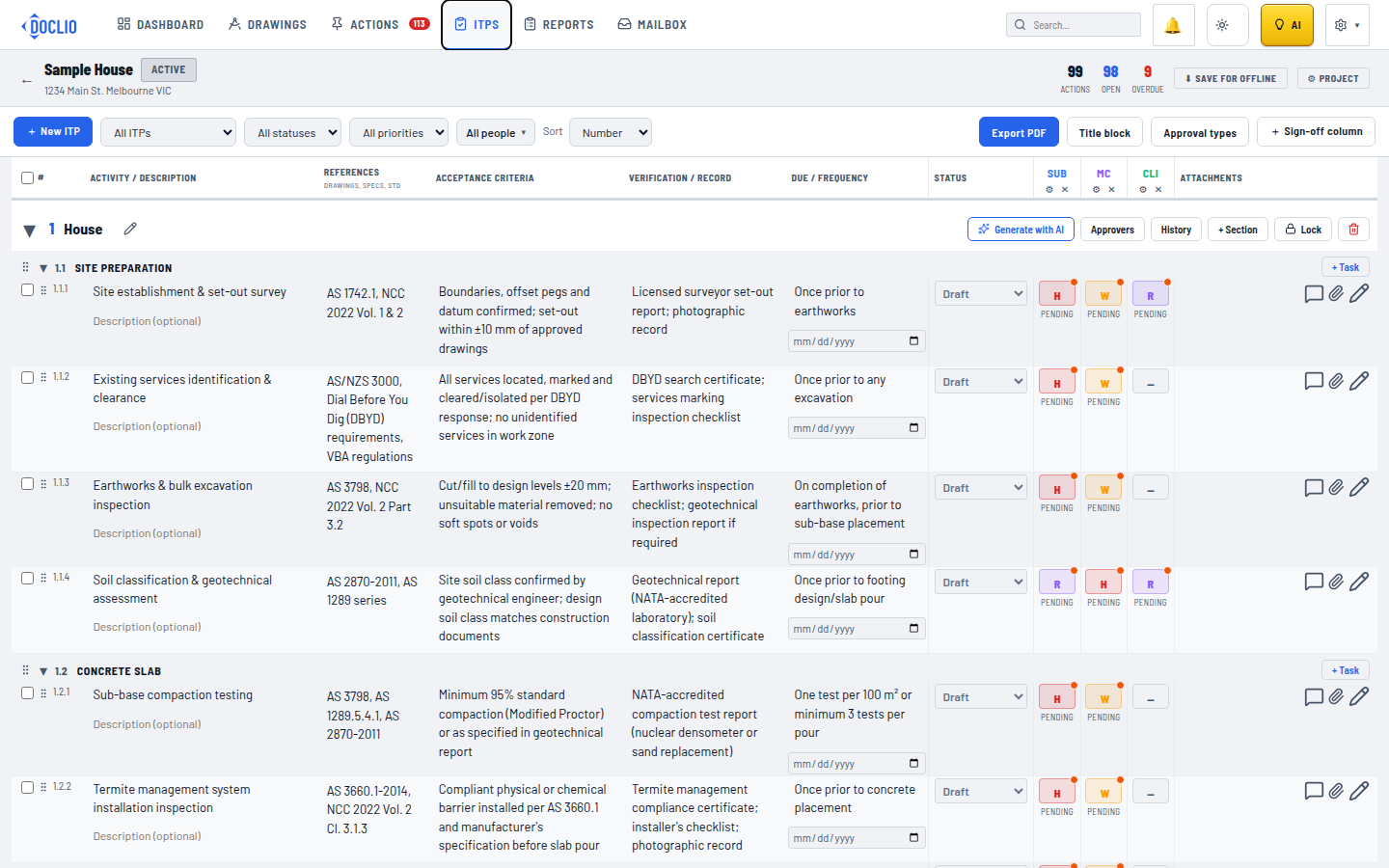
SUB/MC/CLI sign-off columns on the ITP register