See and Control What's Saved on Your Device
Every drawing you view and every project you save for offline takes up a bit of device storage. Doclio gives you a single place to see what's there and clear things you don't need.
Opening the Offline Storage Panel
- Tap Settings from the main navigation
- Select the ⬇ Offline tab
Device Storage Bar
At the top of the panel, a progress bar shows how much of your browser's total storage quota Doclio is using. The quota is set by the browser — usually between 500 MB and several GB depending on your device's free space. When the bar turns red, you're over 80% full and should free some space.
Pinned Projects
Below the storage bar, you'll see a list of every project you've explicitly saved for offline. For each one:
- The project name
- Number of files cached
- Total size on your device
- When you last saved or synced it
- A REMOVE button
Tapping REMOVE deletes every file belonging to that project from your device. You'll get a confirmation prompt first. Annotations, comments, and project metadata are still accessible when the project is re-opened online.
Pinned Files
If you've pinned individual drawings (using the ⬇ button in the drawing header), they appear in their own list with a REMOVE option.
Clear All Offline Data
Under Danger Zone at the bottom, the CLEAR ALL OFFLINE DATA button wipes everything — every cached drawing, every pinned project, every snippet of cached data, and the app's code itself. After clearing, Doclio will re-download itself on your next visit with signal.
When Should I Clear Storage?
- Device is full: Remove projects you're no longer actively working on
- Switching phones: Nothing to clear on the old device — offline data never leaves it, and uninstalling the app or browser removes it. On the new phone, sign in and re-pin the projects you need
- Something seems wrong: Clear All resets caches; sign back in and re-pin projects you need
- Before sharing your device: Clear offline data plus log out if someone else needs to use the browser
Browser Storage Limits
Browsers assign each website a storage quota. Passively-cached drawings expire on their own after 30 days. If your device runs low on space, the browser may also evict cached files — and it doesn't pick carefully which ones go. If a critical drawing must be available offline, use Save for offline rather than relying on passive caching, and check the storage bar before heading to site.
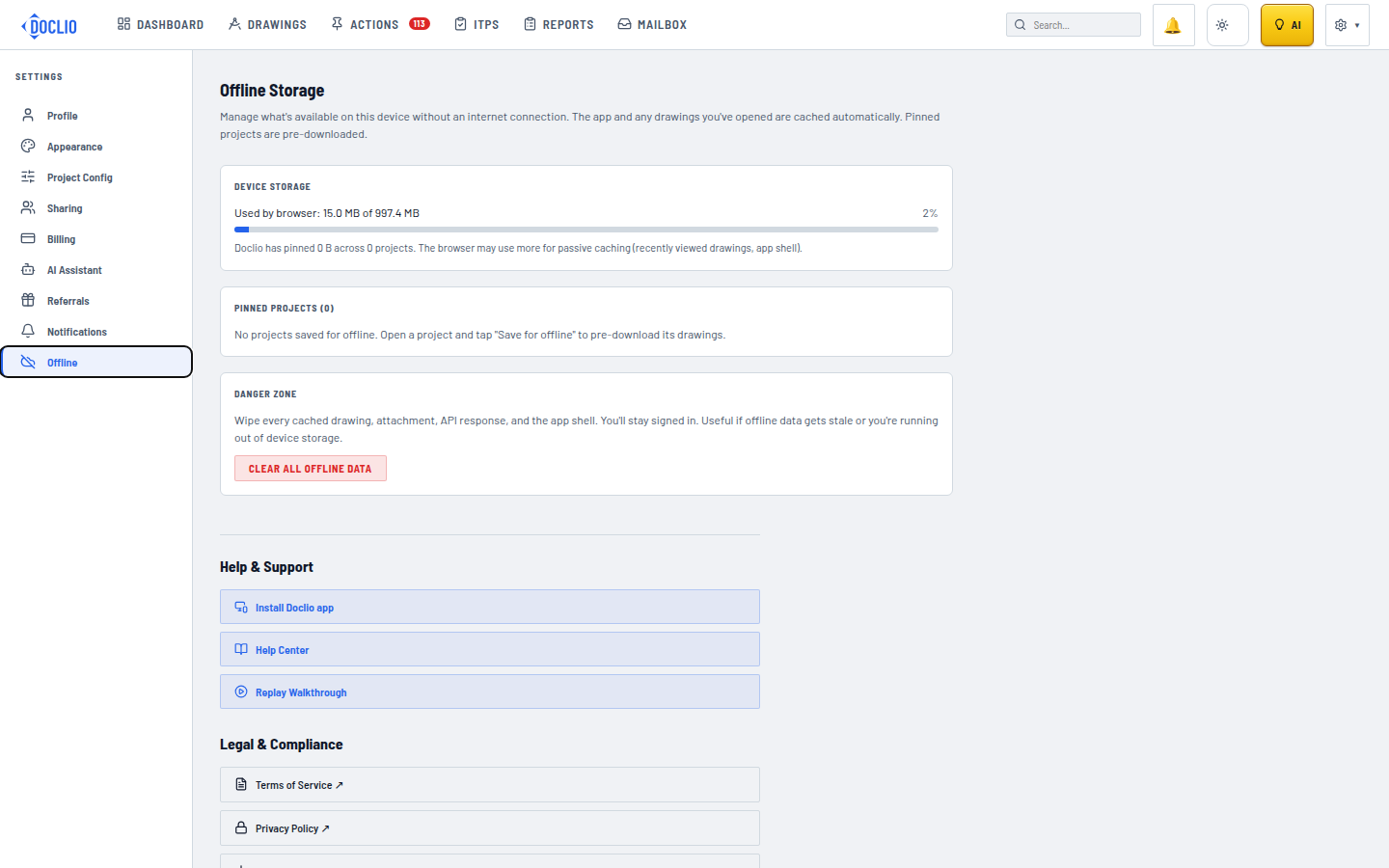
Device storage meter and Clear All Offline Data