Offline Capabilities at a Glance
Doclio lets you read cached data while disconnected, but you can't write. Here's exactly what that means.
✓ What You Can Do Offline
- View drawings you've opened while online, or saved for offline
- Browse projects — project list, project detail pages
- View the Actions list — see all annotations, their statuses, assignments, and due dates
- Read annotations — including pinpoints on drawings, comments, and attached files
- Open cached reports in view mode
- Navigate between drawings, groups, and tags
- Switch between projects you have cached
- Zoom, pan, and scroll on drawings normally
✕ What You Can't Do Offline
- Create new annotations (pins, shapes, text)
- Edit existing annotations (change status, assignee, due date)
- Post comments or reply to existing ones
- Upload attachments (photos, documents)
- Create or send reports
- Share projects or invite team members
- Use the AI assistant
- Open drawings you haven't viewed or pinned
- Sign in or switch accounts (requires live authentication)
Changes are not queued. If you try to add a comment or change a status while offline, the action will fail at the moment you submit it — the data is not saved to be sent later. Wait until you have signal before making edits, otherwise your work will be lost.
Why the Read-Only Limit?
Doclio is collaborative. If two people edit the same annotation offline and then reconnect, we'd need a way to merge their changes — and for construction data (statuses, approvals, photos) getting that wrong is worse than blocking the edit. For now, offline is read-only.
How to Tell You're Offline
A red banner runs across the top of the screen: OFFLINE — Viewing cached data only. Dismiss it and a small red pill stays top-right as a reminder. When you reconnect, both disappear and any pinned projects auto-sync in the background.
Planning Your Offline Work
- Before you lose signal: pin the project(s) you'll need with Save for offline
- On site: read drawings, review actions, check comments, plan your day
- Jot down any comments, status updates, or new annotations on paper or in your phone notes
- When you're back on signal: open Doclio and enter your updates
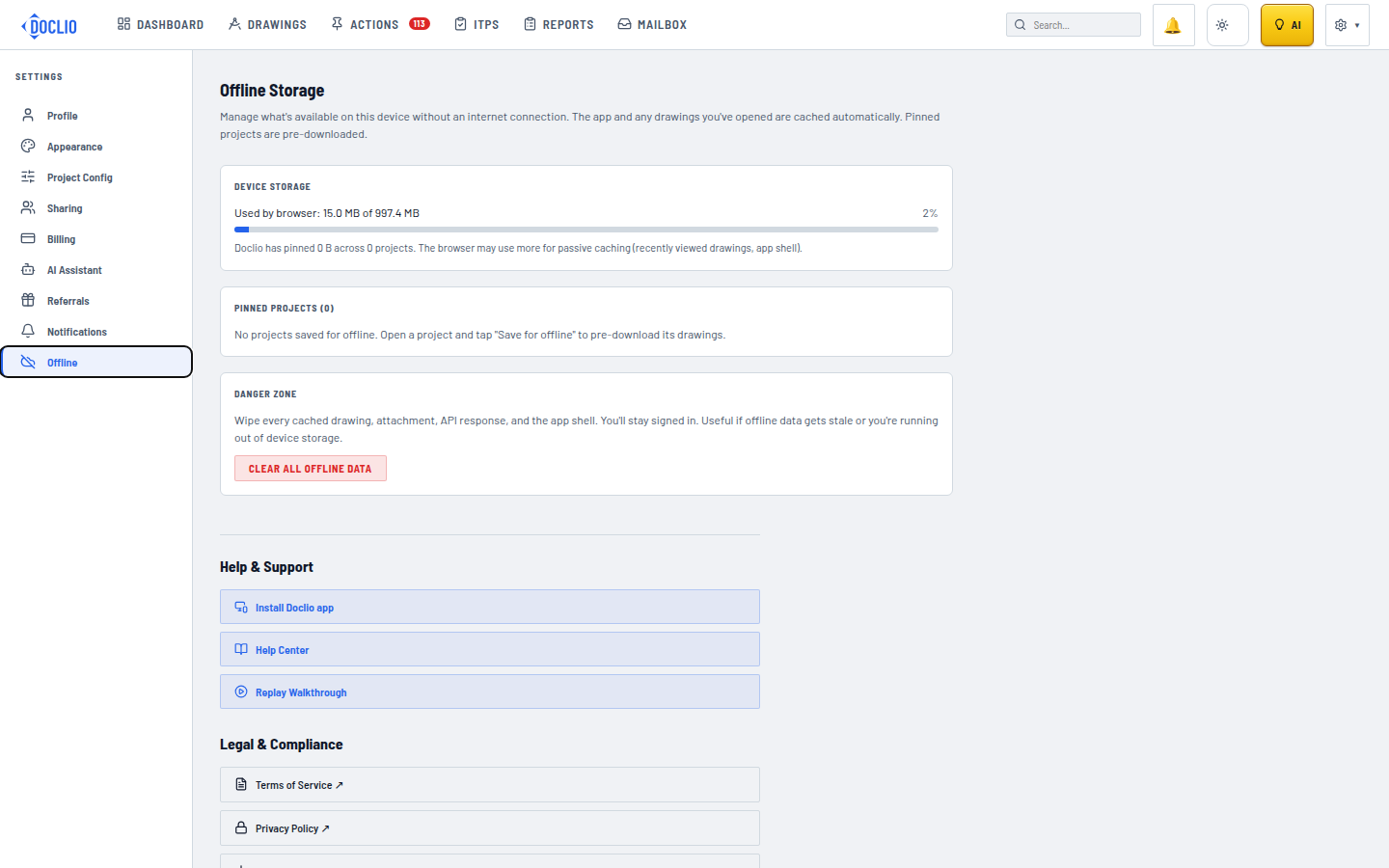
Manage what's cached on this device