The QR Code on Report PDFs
Every report PDF you export from Doclio carries a QR code on page 1, in the top-right, that links to the online version of the report. There's no separate QR code screen in the app — the QR code lives on the PDF, so wherever the printed report goes, the link goes with it.
How It Works
- Open the report and click Download PDF
- Page 1 of the PDF carries the QR code in the top-right, with a "View live report" link below it
- Print the PDF — anyone with a smartphone can scan the code to open the report in their browser
Using It on Site
Useful for printed report sets, the site office wall, and induction packs:
- Printed report sets — the hard copy always points back to the online report, so nobody has to chase a link
- Site office wall — post page 1 and anyone can scan it to check the report on their phone
- Induction packs — include the printed report and new starters can pull it up themselves
Tip: For a live report, scanning the QR code shows the current data — even if the printout is weeks old. For a static report, it shows the snapshot the report was issued with. See Live vs Static Reports.
The report's access level applies as normal: if the report is Public, scanning opens it straight away; if Private, the person opens it from their personal one-click /rv/<token> link (no verification step). See Sharing Reports.
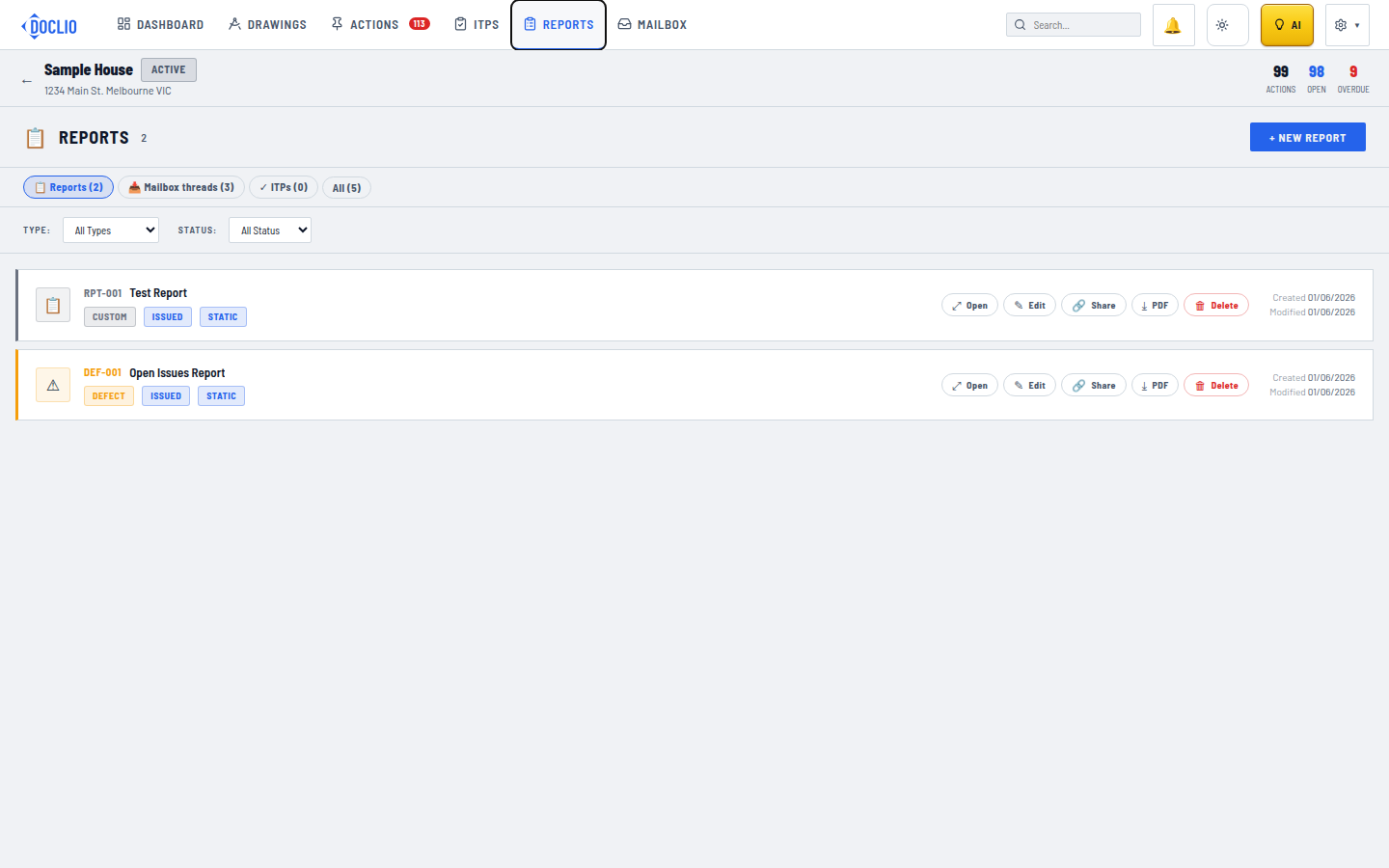
The Share action opens the report's link and QR code