Understanding Annotation Types
Each annotation has a type that indicates its purpose. Types help you categorise and filter annotations.
Default Types
New projects start with five working types:
- Note — General observations, reminders, or information that doesn't require action. Example: "Confirm paint colour with client"
- Query — Questions that need an answer from someone. Example: "Confirm kitchen bench dimensions — 450mm or 600mm?"
- Issue — Problems, defects, or non-conformances that need to be fixed. Example: "Cracked tile at main entry — replace before handover"
- Alert — Safety or urgent flags that need attention before work continues. Example: "Live services in this zone — isolate before excavation"
- Approval — Items requiring formal sign-off from a stakeholder. Example: "East elevation approved by client"
Two special-purpose types also exist: Takeoff (used by the takeoff measurement tools) and AI Finding (where AI-generated results land).
Visual Indicators
Each type has a distinct colour, icon, and pin shape to make them instantly recognisable:
- Pins on drawings are colour-coded by type, and each type uses its own pin shape (e.g., pin, circle, triangle, diamond)
- Type badges appear in the Actions view and annotation detail panel
- Filter by type to focus on specific categories
A type's colour and shape are part of the project — change them and everyone sees the change. How pins are drawn (their style and size) is a personal display preference set in the drawing viewer's toolbar and affects only your own screen. See Viewing and Navigating Drawings.
Pin numbers are drawn light or dark automatically, based on how light the type colour is, so any colour stays readable — you don't need to pick a dark colour to keep the number legible.
Custom Types
You can create custom annotation types for your project:
- Go to Settings → Project Config
- Under Annotation Types, click + ADD
- Set a name, colour, icon, and pin shape
- Optionally switch on the approval workflow toggle so annotations of this type can carry approvers
- Drag to reorder the display priority
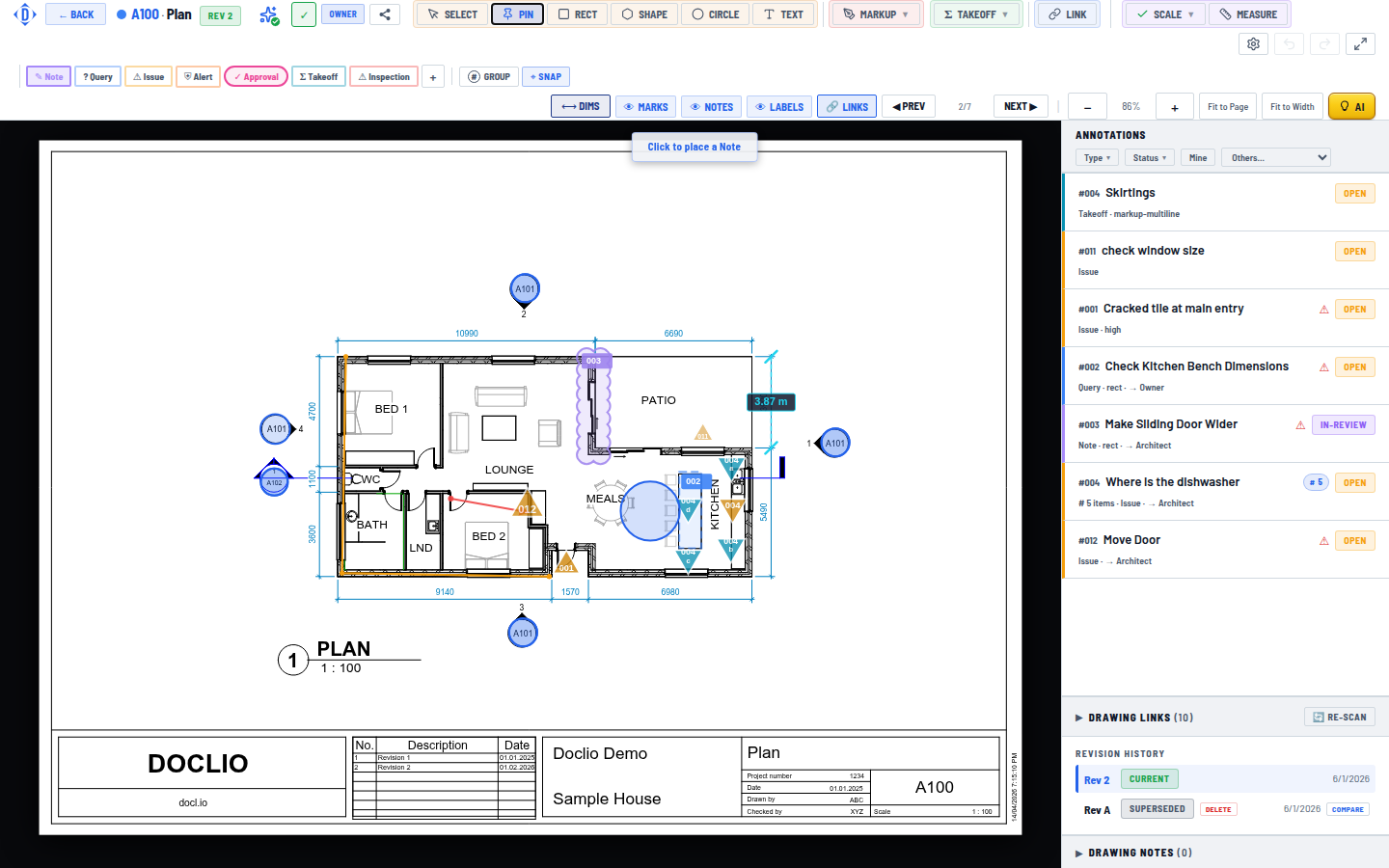
Each type is available directly from the PIN tool