Last updated: May 2026
Getting into Doclio takes a minute. Sign up with an email and password, or use a magic link or a Google / Microsoft account.
Sign up
- Email and password — the default. Enter your email, create a password (minimum 6 characters), and confirm it. We send a confirmation link to your inbox — click it to activate your account, then sign in.
- Magic link — click Email me a magic link instead and we send a one-time sign-in link. No password needed.
- Google or Microsoft — sign in with your existing work account.
The onboarding wizard
The first time you sign in, a short two-step wizard sets you up:
- Your Profile — your display name, company, phone, and role, plus your preferred theme. You'll also be asked to agree to the Terms of Service and Privacy Policy here — ticking the box is required before you can continue. Doclio records the version and date you accepted.
- Get Started — choose how to begin:
- Explore a sample project — a pre-filled demo project so you can click around immediately.
- Create a new project — jump straight into setting up your first real project.
- Start from scratch — land on an empty dashboard and build from there.
After onboarding
You'll land on your Dashboard, and a short welcome tour points out the main areas (you can replay it later). From here you can upload drawings, create projects, and invite your team — see Setting Up Your First Project.
You can update your profile details and theme any time from your account menu (top right) → Settings — profile under the Profile tab, theme under Appearance.
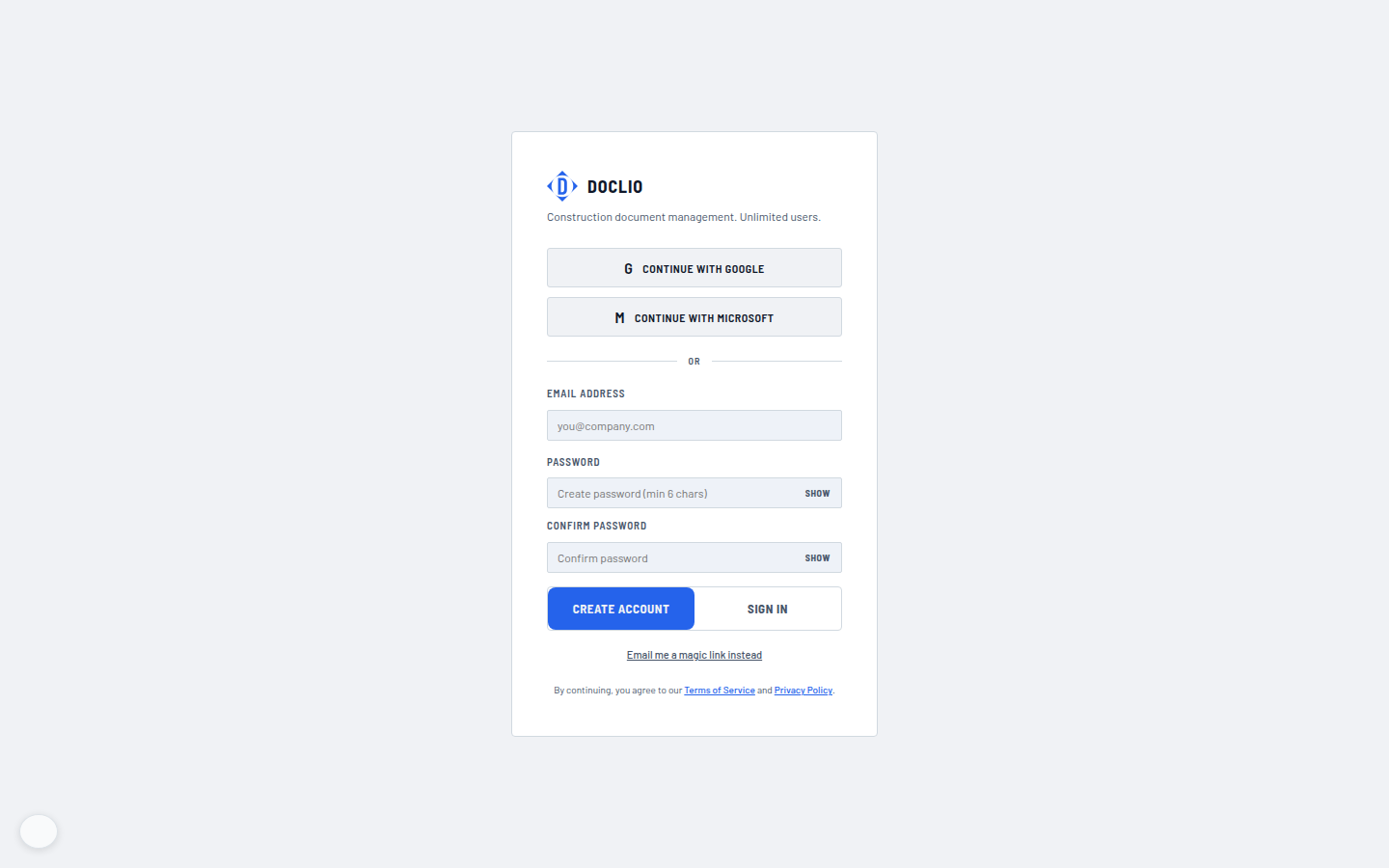
Create an account or continue with Google/Microsoft