Pre-Download Everything You'll Need
If you know you're heading somewhere without signal, you can save an entire project for offline access in advance. This downloads all the project's drawings (and any attachments on their annotations) to your device, so they're guaranteed to be available even for files you've never opened.
How to Save a Project
- Open the project from your Dashboard
- In the project header, tap ⬇ SAVE FOR OFFLINE
- A summary window opens showing what will be downloaded
- Review the included and excluded files (more below)
- Tap DOWNLOAD to start
A progress bar shows how many files are being cached and how much storage they're using. When it finishes, you'll see a green ✓ SAVED OFFLINE confirmation.
Included by Default
To avoid accidentally filling your device, Doclio only downloads these file types by default:
- PDF drawings
- Images under 10 MB (photos, sketches)
- Project metadata (annotations, statuses, comments, tags)
Excluded by Default
These are not downloaded unless you explicitly tick them in the summary window:
- Video files (mp4, mov, avi, etc.)
- Point clouds (e57, las, laz, pts, etc.)
- CAD files over 20 MB (dwg, rvt, ifc, skp, 3dm, nwd, etc.)
How Much Storage Will It Use?
The top of the summary window shows your device's total storage and how much is already used. The summary card below tells you how many files will be cached. Check the storage bar before downloading a big project — browsers typically give each website between 500 MB and several GB, depending on free disk space.
Re-Syncing a Saved Project
If drawings are added to a project after you saved it, Doclio will download them automatically the next time you open the app online — no action needed on your part.
You can also re-sync manually:
- Open the project
- Tap the green ⬇ SAVED OFFLINE button
- Tap UPDATE to re-scan and fetch new files
Saving a Single File
If you only need one specific drawing or document offline (not the whole project), open it and tap the ⬇ icon in the drawing header. It turns green ✓ once cached. Tap it again to remove.
Removing a Saved Project
To free up device storage:
- Open the project
- Tap ⬇ SAVED OFFLINE
- Tap REMOVE OFFLINE DATA
Or manage everything from one place in Settings → Offline. See Managing Offline Storage.
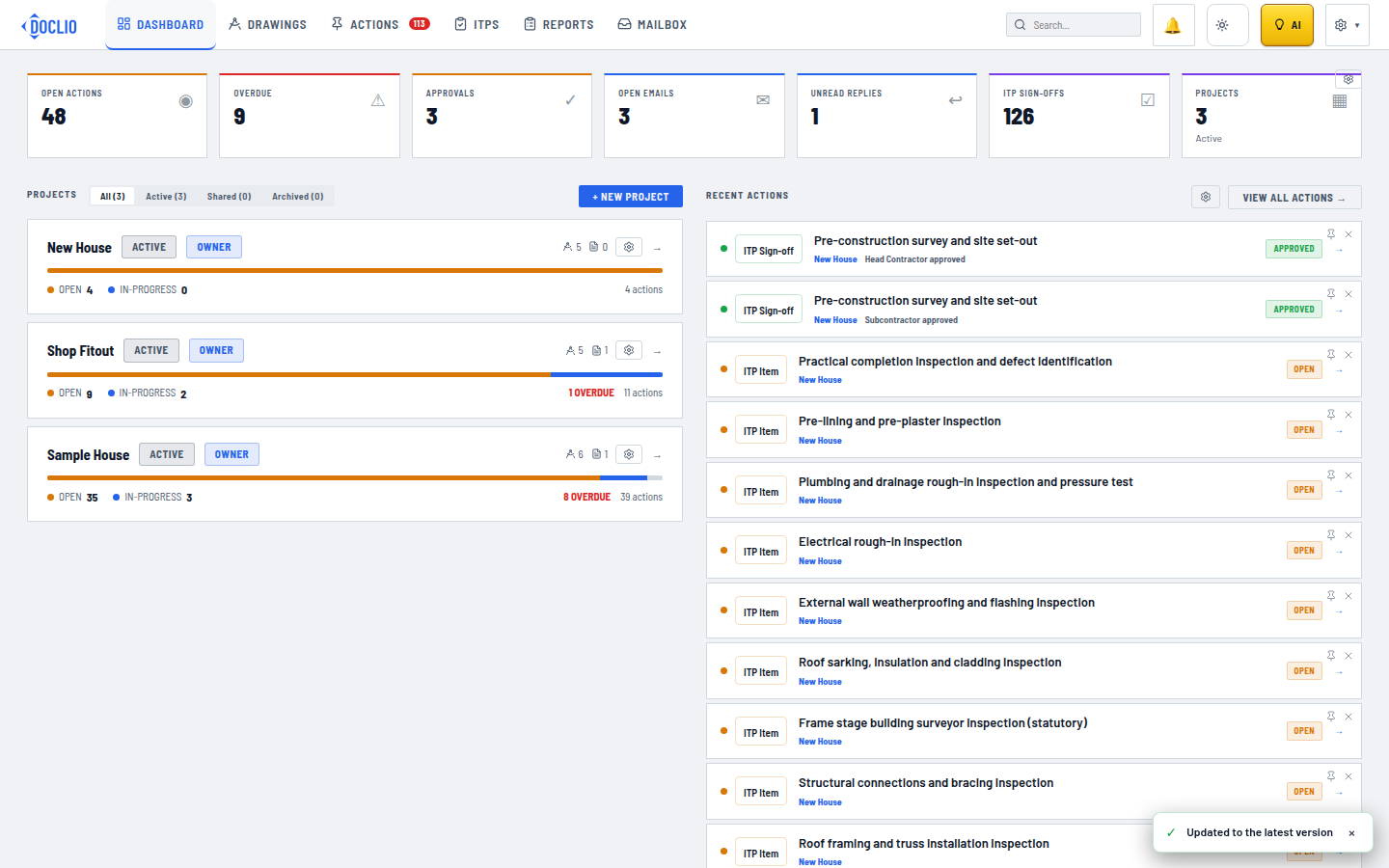
The Save for Offline button inside a project