Last updated: May 2026
When you share a project you make three choices: how much they can see (the share scope), what they can do (the capability), and which role they hold (which controls role-based visibility). This article explains all three.
1. Share scope — how much they can see
Doclio offers six scopes, chosen in the Share dialog:
| Scope | Access |
|---|---|
| Entire Workspace | All current and future projects in your workspace. Best for permanent internal staff. |
| Entire Project | All drawings and actions in one project. |
| Group Only | Limited to one group (discipline) — e.g. only the Structural drawings. |
| By Tag | All drawings carrying one or more selected tags. |
| Single Drawing | One specific drawing only. |
| Multiple Drawings | A hand-picked set of specific drawings. |
2. Capability — what they can do
Each share carries one of four capability tiers:
| Capability | Can do |
|---|---|
| View | Read-only access — open drawings, read annotations and reports. |
| Comment | Everything View can do, plus add comments. |
| Contribute | Everything Comment can do, plus add annotations and attachments. |
| Edit | Full editing access, including editing and deleting others' content. |
3. Role — which annotations and reports they see
When you share, you assign the person a project role. Every project starts with five editable roles — Team, Client, Designer, Consultant, Contractor — which you can rename, add to, or delete in Project Settings → People & Sharing.
Roles drive role-based visibility: you can map an annotation type (or a report) to specific roles. For example, map the "Defect" type to Contractor and Team only, and a Client with the Client role won't see defect annotations at all. See Roles and Capabilities for the full matrix.
Per-annotation visibility: Visible vs Private
Separately, every individual annotation has a visibility setting:
- Visible — shown to shared users, then further filtered by their role (see above).
- Private — visible only to the person who created it and the project owner.
(Older projects may show a legacy "Team" value; it now behaves the same as "Visible".)
Expiry and re-sharing
- Expiry: a share can be set to never expire, or to lapse after 7, 30, or 90 days.
- Can re-share: toggle whether the recipient is allowed to share their access onward.
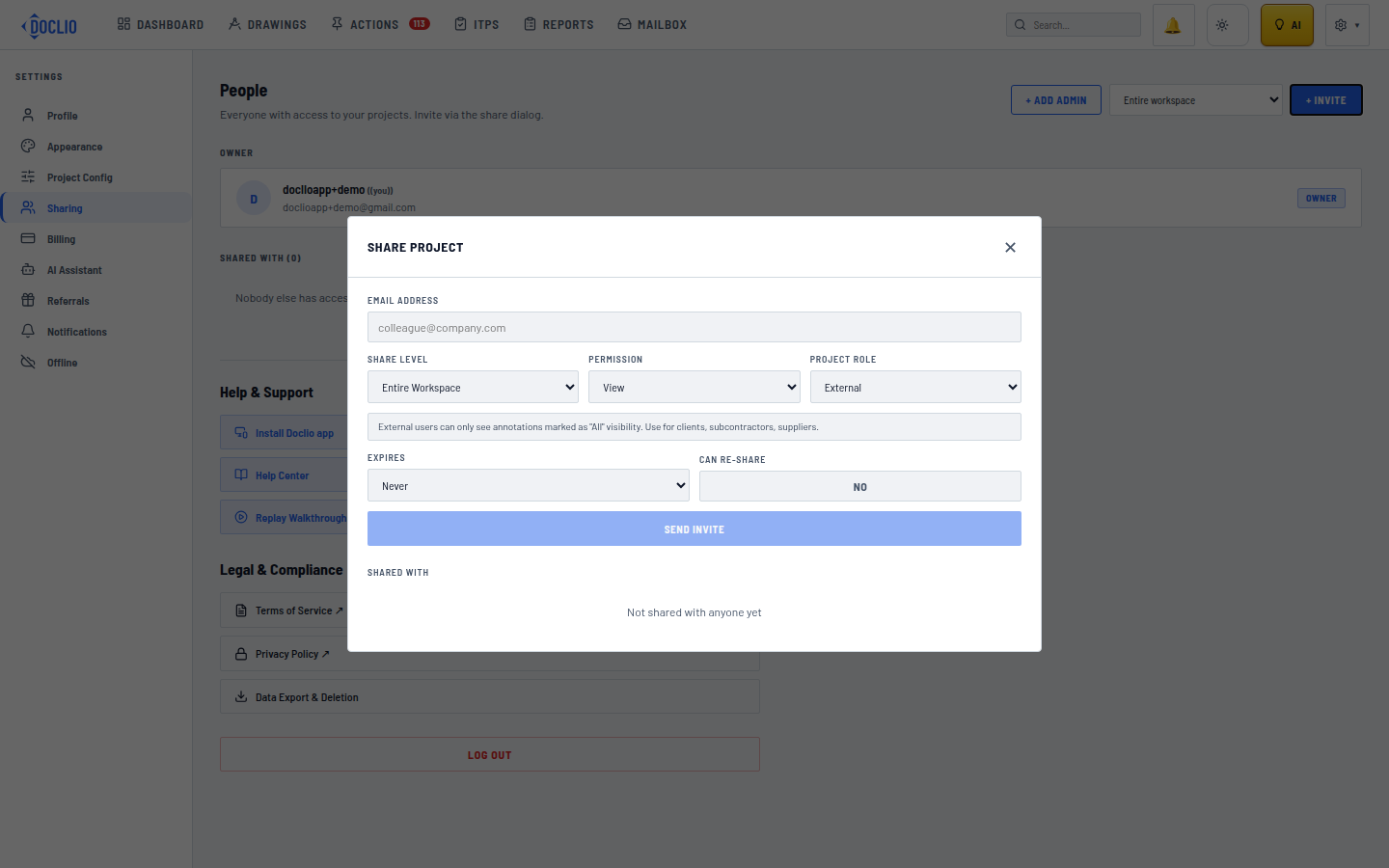
Entire Workspace vs a single project; View vs edit permission
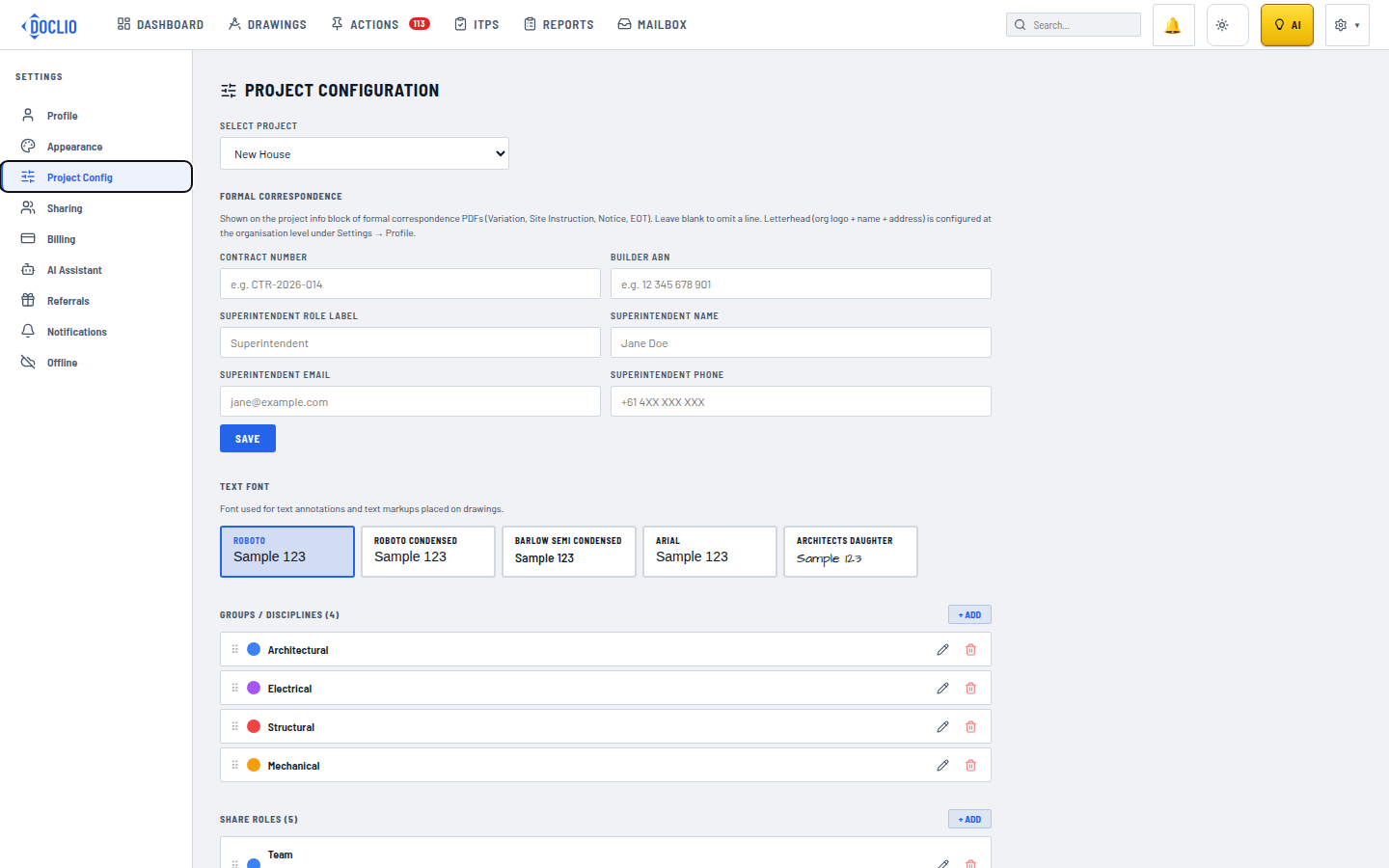
Team, Client, Designer, Consultant, and Contractor share roles