Doclio has four permission levels you can assign when sharing a project, plus a separate Admin tier for project owners and organisation admins. This article covers what each level can do.
These rules are enforced on the server, not just hidden buttons — there's no way around them via the API. See our Information Security article for the technical detail.
Tip: Permissions control what someone can do. Share Levels control which drawings they can see (whole project, one group, specific drawings, or whole workspace). The two are independent — you can give someone Edit access to a single drawing, or View access to an entire workspace.
Quick Reference
| Action | View | Comment | Contribute | Edit | Admin |
|---|---|---|---|---|---|
| See drawings & annotations | ✅ | ✅ | ✅ | ✅ | ✅ |
| Read reports they're shared on | ✅ | ✅ | ✅ | ✅ | ✅ |
| Add comments on annotations | — | ✅ | ✅ | ✅ | ✅ |
| Create / edit annotations | — | — | ✅ | ✅ | ✅ |
| Upload drawings & attachments | — | — | ✅ | ✅ | ✅ |
| Add new drawing revisions | — | — | ✅ | ✅ | ✅ |
| Create & edit reports | — | — | — | ✅ | ✅ |
| Edit project settings (groups, tags, types, statuses) | — | — | — | ✅ | ✅ |
| Invite other users to the project * | — | — | — | — | ✅ |
| Archive or delete the project | — | — | — | — | ✅ |
| Manage organisation members & billing | — | — | — | — | ✅ |
* Inviting isn't tied to the capability level. Project owners and organisation admins can always invite. A shared user — at any level, including Edit — can re-share only if their own share has can re-share turned on (off by default).
1. View
Read-only access. Use for stakeholders who need visibility but should never change anything — clients reviewing progress, auditors, executives, certifiers, or contractors who only need to check the latest issued drawings.
A View user can:
- Open drawings (in the gallery and the drawing viewer) for everything they've been shared on
- See annotations, comments, attachments, and revision history
- Open reports they've been shared on
- Use the AI assistant to ask questions about the project (subject to AI credits)
- Export their own personal data via Settings → Data Export & Deletion
A View user cannot:
- Add annotations, comments, attachments, or markup
- Upload drawings or revisions
- Create or modify reports
- Change project settings or invite others
View also respects annotation visibility — see "Visibility Levels" below. A View user with an "External" role only sees annotations marked Visible to all, not internal team-only annotations.
2. Comment
View + add comments. Use for reviewers who need to respond to issues but shouldn't be creating or modifying the underlying annotations themselves — quality reviewers, project administrators, or external consultants who provide written feedback.
Everything a View user can do, plus:
- Add comments on any visible annotation
- Edit and delete their own comments
A Comment user cannot create or modify annotations themselves — they're responding to existing items, not raising new ones.
3. Contribute
The standard working level for project team members. Use for site teams, contractors, designers, engineers, or anyone who actively works on the project day-to-day.
Important: Contribute is a trusted level. A Contribute user can edit and delete any annotation or attachment in the project, including ones created by other people — not just their own. Use Comment (not Contribute) for reviewers who shouldn't be able to modify other team members' work.
Everything a Comment user can do, plus:
- Create new annotations (defects, RFIs, issues, notes, queries, etc.)
- Edit and delete any annotation in the project, including those created by other users
- Upload new drawings and documents
- Upload new drawing revisions
- Add, edit, and delete file attachments on any annotation
- Update annotation status, priority, due date, and assignee
- Respond to approval requests (if assigned as an approver)
The one thing a Contribute user cannot do that a creator can: edit or delete a comment that someone else wrote. Comments are always editable only by their original author (see FAQ below).
A Contribute user cannot:
- Create or modify reports (read-only access to reports they're shared on)
- Edit project settings (annotation types, statuses, groups, tags, share roles)
- Invite new users to the project
- Archive or delete the project
4. Edit
Full project access short of administration. Use for project leads, project managers, or anyone you trust to manage the project's structure and outputs without giving them control of the wider organisation or billing.
Everything a Contribute user can do, plus:
- Create, edit, duplicate, and delete reports
- Configure project settings — annotation types, statuses, groups (disciplines), tags, share roles, project font, default colours
- Issue and resend approval requests
- Delete (but not edit) comments written by other users — useful for moderating spam or obsolete threads
- Manage drawing revisions including superseding and rollback
- Configure cross-reference auto-detection settings
An Edit user cannot:
- Invite other users to the project — unless their own share has can re-share turned on
- Archive or delete the project itself
- Change subscription plans, add overages, or buy AI credit top-ups
- Manage organisation members or roles outside this project
5. Admin
"Admin" isn't a share-level capability — it's a separate, broader role assigned at the project or organisation level. There are two paths to Admin:
Project Owner
The user who created the project. By default, the only Admin until they invite others. A Project Owner has all Edit capabilities plus:
- Archive the project (counts against archived-project quota; can be restored)
- Permanently delete the project (irreversible — drawings, annotations, reports, history all removed)
- Invite users and manage every share on the project
- See Private annotations created by anyone on the project
Organisation Admin or Owner
Within an organisation (managed via Settings → Sharing), two org-level roles are assignable:
- Owner — Full organisation control. Manages billing, subscriptions, AI credit top-ups, capacity overage blocks, all members, and has Admin-equivalent access to every project owned within the org.
- Admin — Manages organisation settings, billing, and members, and automatically gets Edit access to every project in the workspace.
Older accounts may still carry legacy Member or Viewer org roles — these behave as Edit and View respectively on projects owned within the org, but can no longer be assigned in the UI.
An organisation is a billing entity, not a security boundary. Being a member of an organisation does not automatically grant access to another user's projects — the project owner has to share with the org explicitly. The org-level role only kicks in once a share with that org context exists.
Role-Based Visibility
Doclio has two independent visibility mechanisms on top of capabilities — a per-annotation visibility flag (Visible / Private), and per-share-role mappings on annotation types and reports. Both filter after capability checks.
Per-Annotation Visibility
Each annotation has a visibility setting that controls who can see it once they have access to the drawing:
- Visible (default) — Visible to all users on the project, filtered by their share role and the annotation type's role mappings (see below).
- Private — Only visible to the user who created the annotation, plus the project owner.
Per-Annotation-Type Role Mappings
The project owner (or anyone with Edit access) can configure each annotation type to be visible only to specific share roles. This is set in Settings → Project Configuration → Annotation Types — when adding or editing a type, you can pick which roles are allowed to see it. A type with no role mappings is visible to everyone.
Worked example. Suppose your project has share roles Designer, Client, and Contractor, and three annotation types — Note, Issue, and Defect:
- Note has no role mappings → visible to all roles.
- Issue is mapped to Designer + Client → only Designers and Clients see Issue annotations.
- Defect is mapped to Contractor only → only Contractors see Defect annotations.
A shared user with the Client role would see Notes and Issues but not Defects. A Contractor sees Notes and Defects but not Issues. A Designer sees Notes and Issues but not Defects.
Project owners, organisation members, and shared users with no role assigned always see all annotation types regardless of mappings — restrictions only filter users who carry a specific share role.
Role-Restricted Users Cannot Create New Annotation Types
To prevent the role mapping from being bypassed, shared users who carry a share role cannot create new annotation types — the inline + button next to the type strip in the drawing viewer is hidden for them. If a role-restricted user could add a new type, the new type would land with no role mappings (i.e. visible to all), defeating the visibility rule. Only project owners, org members, and shared users with no role assigned see the + button.
The same logic applies on the desktop and mobile drawing viewer toolbars. Role-restricted users still see the existing types they're allowed to use, and can place annotations of those types — they just can't invent new types.
Role-Based Report Visibility
Reports support the same role-mapping mechanic. In the report builder's Step 5: Share & Send, the Visible to Project Roles card lets you restrict who can see the report:
- Visible to all (default) — Every shared user with project access sees the report.
- Visible only to selected roles — Only users whose project role matches one of the ticked roles can see the report.
Restrictions apply only to users who access the report through their project share — they don't affect external recipients added in the Add Recipient form (Report Only or Full Share recipients are tracked separately) or public-link viewers.
The Existing Project Users list at the bottom of Step 5 shows each user's role next to their capability. When the report has role restrictions, users whose role isn't in the allowed set are dimmed (line-through email) with a role blocked badge so the report owner can see at a glance who will and won't see this report.
See Sharing Reports for the full Step 5 walkthrough.
How Filtering Layers Together
The order in which Doclio decides whether a user sees a piece of content:
- Capability check — Does the user have View access to the project (via direct share, org membership, or workspace share)? If not, they see nothing.
- Per-annotation visibility — Is the annotation marked Private and the user isn't the creator or project owner? If yes, hide.
- Annotation type role mapping — Does the user's share role allow them to see this annotation's type? If no, hide.
- Report role mapping (for reports specifically) — Does the user's share role allow them to see this report? If no, hide.
See Share Levels Explained for how share roles work alongside capabilities.
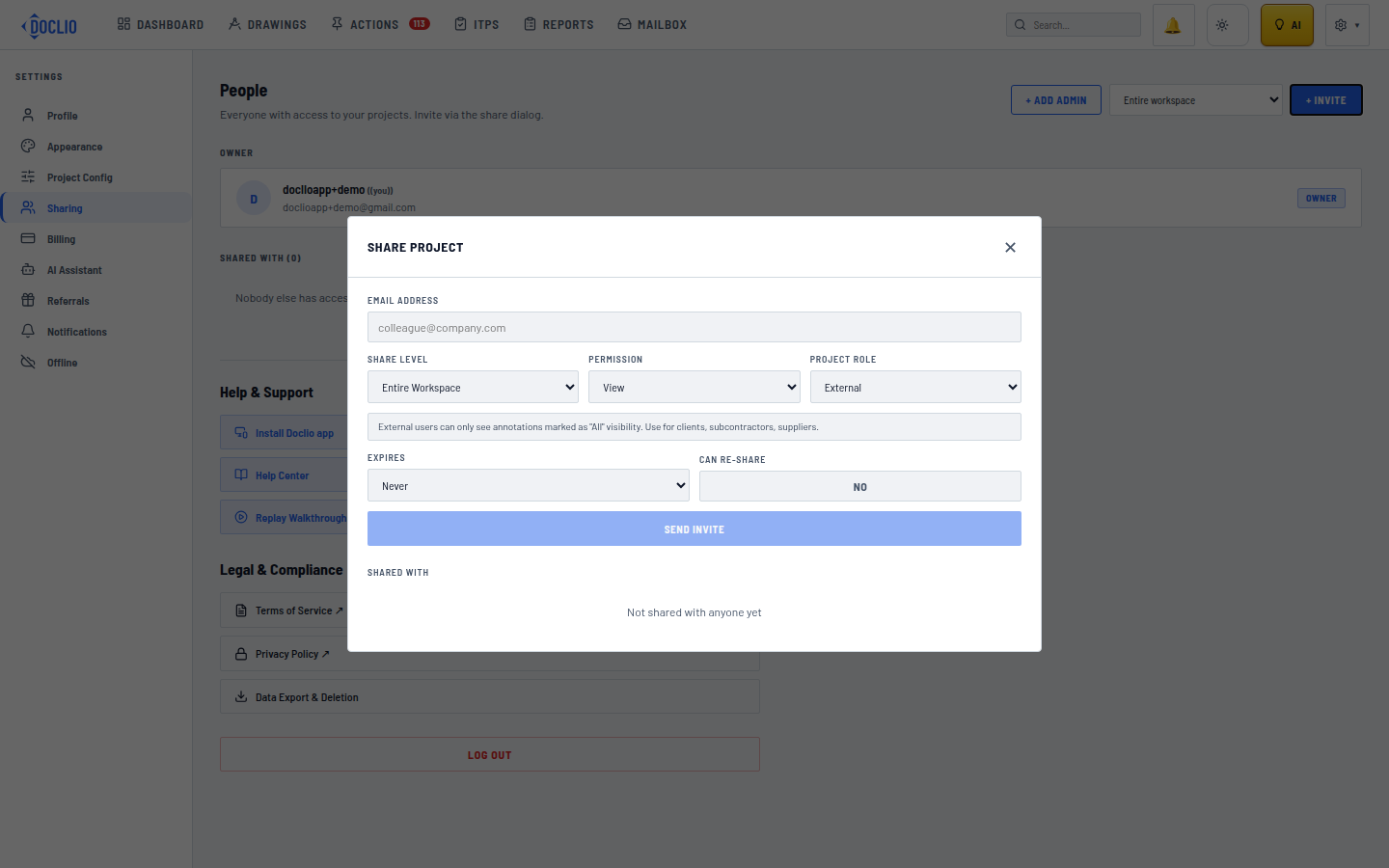
How to Set or Change a User's Permission Level
- Open the project
- Click the ↗ SHARE button in the toolbar (Drawing Gallery or Project Settings → Sharing)
- For a new invite: enter the email, pick the Permission (View / Comment / Contribute / Edit), pick the Project Role (drives visibility filtering — see above), and click SEND INVITE
- For an existing share: expand the share row and use the inline dropdowns to change Permission or Role at any time. Changes apply immediately.
- To revoke access entirely, click the REVOKE button on the existing share row.
Project owners and organisation admins can always manage shares. Anyone else — regardless of capability level — can invite others only if their own share has can re-share turned on.
Frequently Asked Questions
Can anyone edit a comment that I wrote?
No. Only the original author can edit a comment, regardless of permission level — even Edit users and project owners cannot rewrite someone else's comment. They can delete it (Edit users + project owners only) if it needs to be removed entirely, but the text itself can never be modified by another user. This is enforced by the database, not just the UI.
Can a Contribute user delete annotations created by other users?
Yes. Contribute, Edit, and Admin users can edit or delete any annotation in the project, regardless of who created it. The original author can also always edit and delete their own annotations. If you need to share a project with someone but prevent them from modifying other people's work, give them the Comment level instead — they can add their own comments without being able to touch existing annotations.
What about attachments — same rule as annotations or comments?
Same as annotations. Contribute, Edit, and Admin users can add, edit, or delete any attachment on any annotation, including attachments uploaded by other users. The original uploader can always manage their own attachments.
Are external users (clients, contractors) charged the same as internal team members?
No — Doclio has unlimited users on every plan. Anyone you invite is free, regardless of capability level or organisation membership. Subscription tiers are about projects, drawings, storage, and AI credits, not seat counts.
Someone holds an org role on my organisation — can I give them View only on one project?
No. The org role resolves first, and a user's effective capability is the highest across everything that grants them access — an org admin (or legacy Member) already has Edit on every project the org owns, and adding a direct View share won't lower it. If someone needs View-only access, don't make them an org admin: share the project with them directly instead.
Can a View user use the AI assistant?
Yes — the AI assistant respects whatever data the user can see. A View user gets accurate answers about the project's annotations and drawings, but the assistant won't be able to create anything on their behalf because the View user doesn't have permission to create.
What happens to existing shares when I change someone's permission level?
The change applies immediately. If they're currently editing an annotation when their permission is downgraded, the next save attempt will be rejected by the database. Their browser tab won't crash, but they'll see an error toast and the change won't persist.
Where to manage sharing
The quickest place to manage who's on a project and what they can do is Project Settings → People & Sharing, which includes a permissions matrix. For narrower scopes — a single drawing or a group rather than the whole project — use the ↗ Share button. See Project Settings and Share Levels Explained.
External, Contractor, Consultant, Designer, Client, and Team roles
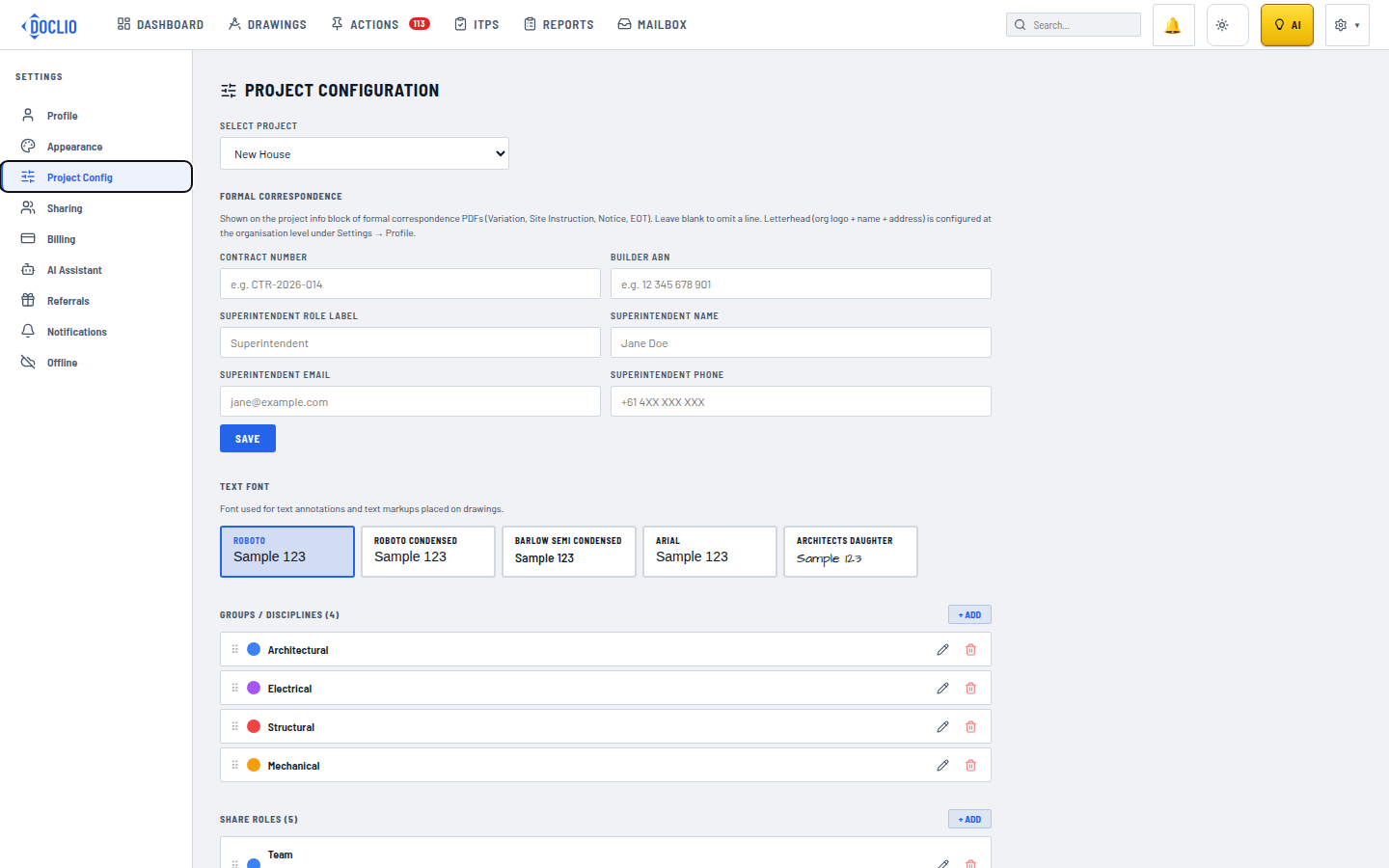
Configure share roles under Settings → Project Config