Last updated: May 2026
Your organisation (workspace) is the billing entity that owns your subscription, AI credits, and storage. This article explains who can be in an organisation, the member roles, and — importantly — what organisation membership does and does not grant.
Organisations are billing entities, not access boundaries
This is the single most important thing to understand:
Being a member of an organisation does NOT automatically give you access to other members' projects. Access to a project only happens when the project owner explicitly shares it with you.
An organisation groups people for billing and workspace management. It is not a security boundary. Two people in the same organisation see each other's projects only where a share has been created — exactly the same way an external client would. If you expect a teammate to see a project and they can't, the fix is to share the project with them (see Inviting Team Members), not to add them to the organisation.
Member roles
| Role | What it can do |
|---|---|
| Owner | The account that created the organisation. Full control of billing, members, and every project they own. |
| Admin | Manages organisation settings, billing, and members, and automatically gets edit access to every project in the workspace. Useful for a second-in-charge. |
Older accounts may still carry legacy Member or Viewer org roles — these behave as Edit and View on projects the organisation owns, but they can no longer be assigned in the UI. Everyone else in your workspace is there through a share, not an org role.
Organisation roles control billing and member management. They are separate from project roles (the named roles like Client, Designer, or Contractor that you assign when you share a specific project). See Roles and Capabilities.
Adding and removing people
Go to Settings → Sharing. The People view lists everyone with access to your workspace — the owner, any admins, and everyone you've shared projects with.
- + INVITE — shares a project (or the entire workspace) with someone. Pick the scope from the dropdown next to the button, then set their capability and role in the share dialog. This is how you bring most people in.
- + ADD ADMIN — promotes someone to organisation admin. Admins can manage organisation settings, billing, and the AI assistant, and automatically get edit access to every project in the workspace.
- Remove someone's access from the same screen — revoking an admin also revokes their workspace-wide access.
How many users can I have?
Every Doclio plan includes unlimited users — including the free Starter plan. There is no per-seat charge and no billable-user cap on any tier. Invite as many teammates, clients, consultants, contractors, and certifiers as you like. Plans differ on project, drawing, and storage capacity — not on the number of people.
Common questions
"I added someone to my organisation but they still can't see my project." That's expected — organisation membership alone never grants project access. Open the project, click Share (or open Project Settings → People & Sharing), and add them with a role and capability.
"Does adding users cost more?" No. Users are unlimited and free on every plan.
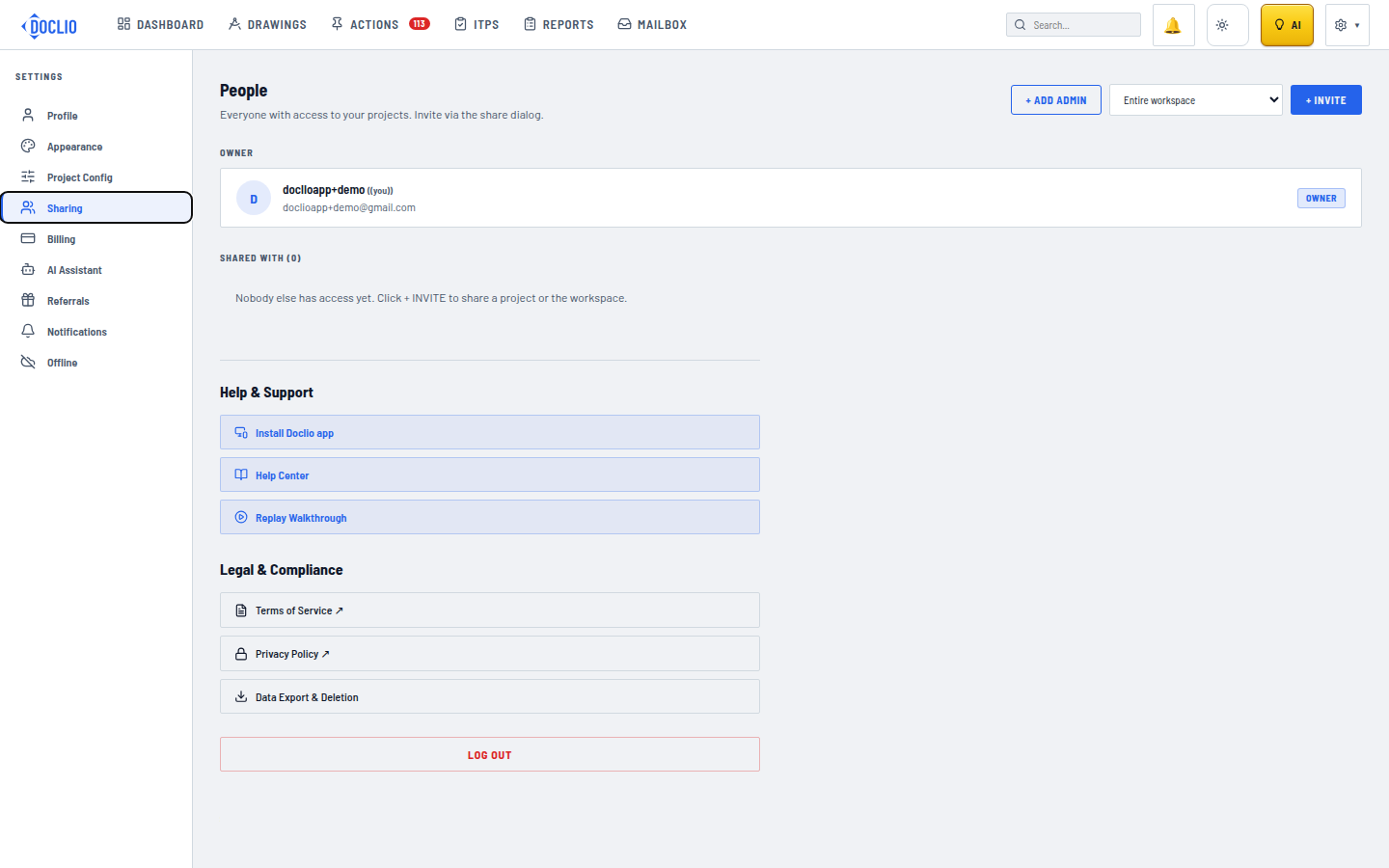
Add an admin or invite someone to the entire workspace