Last updated: August 2026
The Mailbox is where you compose and send formal project correspondence — RFIs, variations, site instructions, transmittals, quote requests, and general notices — as emails that thread back into Doclio. This article covers the Mailbox layout on desktop and on a phone, how to compose and send, recipients, replies, and what you can and can't change after sending.
Where the Mailbox lives
The Mailbox nav tab sits alongside Actions — they're separate tabs. Actions is your full task/annotation list; the Mailbox is specifically for email correspondence you've composed and sent. On a phone it's in the bottom tab bar. (Old ?activeView=actions links from earlier notifications still resolve correctly.)
Folders
There are four folders:
- Project — every correspondence thread on the project that you can see.
- Inbox — threads where you're a recipient.
- Sent — threads you sent.
- Drafts — unsent drafts (saved in your browser).
On desktop they're a strip down the left. On a phone they're tabs across the top, with Inbox first, and they disappear while you're reading a thread so the message has the whole screen.
Project and Inbox show an unread count. Drafts shows how many drafts you have, and Sent has no badge — you've already read what you sent.
The list
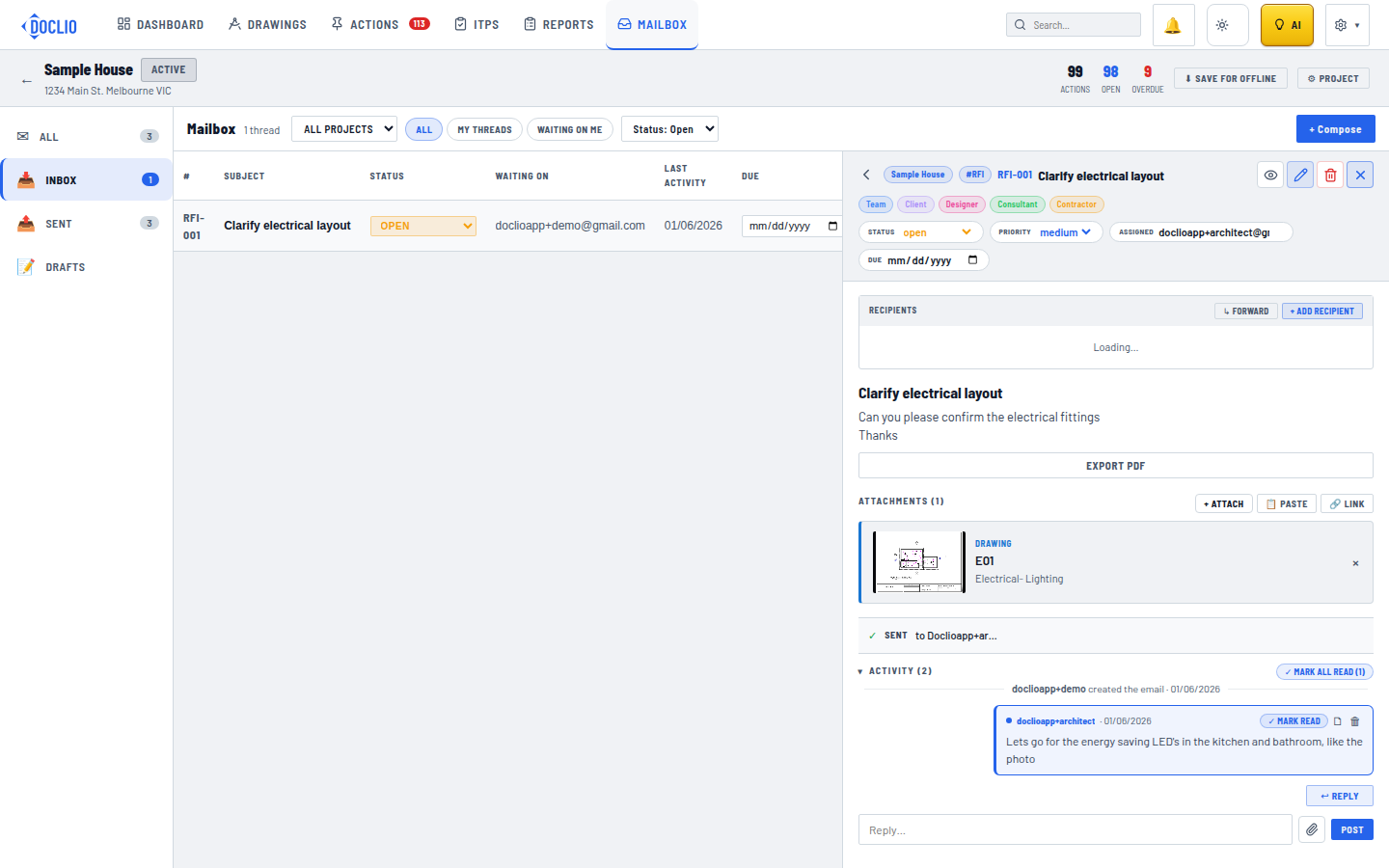
On desktop each row is a table line: reference number, subject, status (editable in place), who it's waiting on, last activity, due date (also editable in place), and recipient avatars.
On a phone the row is deliberately shorter, like any mail app: the sender's initials, their name, when it arrived, the subject, and a one-line preview. The reference number, recipients and due date aren't shown in the list — they're all in the thread itself.
Read and unread
Opening a thread marks it read. To put one back, open it and choose Mark unread from the menu in the thread header — that also closes the thread and returns you to the list. Mark all read clears everything currently shown in the list.
Filtering
You can filter by Project, by who it involves (All threads / My threads / Waiting on me), and by Status.
On desktop these sit in a row above the list, and the list starts filtered to open threads. On a phone, tap the filter button beside the folder tabs to open the filter sheet; the phone list starts by showing all threads whatever their status, so nothing is hidden from you by default. When a filter is on, a bar above the list says what's active and how many threads it's showing, with a Clear button.
Composing a thread
Click + Compose on desktop, or the round + button in the bottom-right corner on a phone. The composer is a single email-style screen — no multi-step wizard. You fill in:
- From / Project — which project the thread belongs to (filled in automatically when you compose from inside a project).
- To and Cc — recipients (see below). Autocomplete suggests people who've collaborated on the project.
- Category — an optional tag (RFI, Variation, Site Instruction, …) that drives the thread's number. See Correspondence Categories & Numbering.
- Subject and Due date.
- Body — a rich-text editor (bold, italic, lists, links, headings).
- Attachments — attach files from your device, and use + From project to embed drawings, other items, or reports as references.
You can Save draft at any time, and the composer auto-saves every few seconds. Click Send when ready.
Recipients: To, Cc, and access
Recipients on the To line are expected to respond; Cc recipients are kept in the loop. For anyone who isn't already on the project, you choose how they get access when you send:
- Public link — they open the thread via a personal link, no account needed.
- Invite as Viewer — read-only project access.
- Invite as Editor — full project access.
People already on the project keep their existing role.
What the recipient receives, and replies
Each recipient gets an email with a link to the interactive report viewer (/r/<token>) where they can read the thread and reply. They can also just reply to the email — Doclio threads the reply straight back into the conversation, and the sender is automatically kept on the thread. The reply-to address is friendly (for example Doclio — Project · RFI-0042 …) so it's clear what they're replying to. See The Interactive Report Viewer.
Replying yourself
Open a thread and use the reply box at the bottom. You can send either a normal reply, which goes to the thread's recipients, or an internal note, which stays with your own team and is never emailed out. On desktop these are two labelled buttons above the box; on a phone it's one round button on the left of the reply bar — tap it to switch, and the box turns purple to show you're writing an internal note. You can attach a file to a reply, but not to an internal note.
The thread
Opening a thread shows the subject and its details, Appears on (any drawings the thread is anchored to — a thread can span several), the attachments and references that were sent with it, the conversation itself, and a transmission history chip showing when it went out and which report bundled it.
Recipients on an open thread
On desktop, recipients are a single line showing how many there are and the first couple of addresses — click it to expand the full list, where you can mute someone (they stay on the thread but stop getting emails), remove them, or Forward the thread to someone new with a catch-up email.
On a phone, tap the summary line under the subject to open thread details, which holds the same recipient controls along with status, priority, owner, due date and the thread's reply-in address. Forward thread is in the menu in the thread header.
What you can change after sending
Once a message has been sent, its subject, body and reference number are locked. Correspondence is a record of what was actually sent — the copy in the recipient's inbox can't be edited, so the copy in Doclio shouldn't drift away from it either. To correct or add something, reply on the thread or forward it.
Everything around the message stays editable: status, priority, owner, due date, visibility, and who's on the recipient list.
Attachments and references
Drawings, items and reports are attached when you compose. Inside a thread that's already been sent you can attach a file to a reply, and the references sent with the original are still listed and open when tapped. Removing an attachment asks you to confirm first: a file is deleted for good, while a linked drawing, item or report is only unlinked and still exists on its own.
Items sent in an email
When you attach an item (an issue, note or query) to correspondence, that item's own activity records it — for example linked in email RFI-014: Ceiling height clash — and you can tap it to open the email it went out in.
Note that an item's replies and its email's replies are separate conversations. A comment you add on the item is not sent to the people on the email, and a reply to the email lands on the email thread. This is deliberate: one item is often sent to several different parties, and their replies shouldn't be visible to each other. If you want the recipients to see something, reply on the email thread.
The eight correspondence templates
Doclio ships eight formal correspondence templates:
- Note
- RFI
- Approval
- Variation
- Defect List
- Quote Request
- Distribution
- Site Instruction
Doclio Tech — the AI correspondence mode — drafts straight into these templates: describe the situation in plain English and it proposes the right one, asks a clarifying question or two, then hands you a ready-to-review draft in the composer. See AI modes — Doclio Assistant, Estimator, Tech.
A note on annotation types
New projects are seeded with a starter set of annotation types — Note, Query, Issue, Alert, Approval — which you can customise in Settings → Project Config. These are the types used on drawing annotations and actions. Mailbox correspondence is organised by category (for numbering), not by these annotation types.
RFI thread with status, priority, recipients, and activity log