Last updated: May 2026
Doclio uses a single top navigation bar that stays with you as you move between projects.
Top navigation
- Dashboard — your snapshot and project list.
- Drawings — the drawing gallery and viewer.
- Actions — the full list of actions/annotations across your work.
- Mailbox — formal email correspondence threads. See the Mailbox guide.
- Reports — build and share reports.
- ITPs — inspection and test plans.
- Search — global search across projects, drawings, and actions.
On mobile, the same destinations appear in a bottom navigation bar.
Working inside a project
When you open a project you don't get a separate set of in-project tabs — you use the same top navigation. A slim project context bar shows which project you're in, key counters (open / overdue actions), and quick buttons for offline access and ⚙ Project settings. See Project Settings.
Guided tours
Short guided tours highlight each screen the first time you visit it, and you can replay the tour for the current page any time from the user menu → Replay walkthrough. See Guided Walkthroughs.
Themes & account
Your account menu (top-right) shows your email and plan, and holds Settings, a Support link, Replay walkthrough, and Sign out. Your profile and theme live under Settings. See Themes and Appearance.
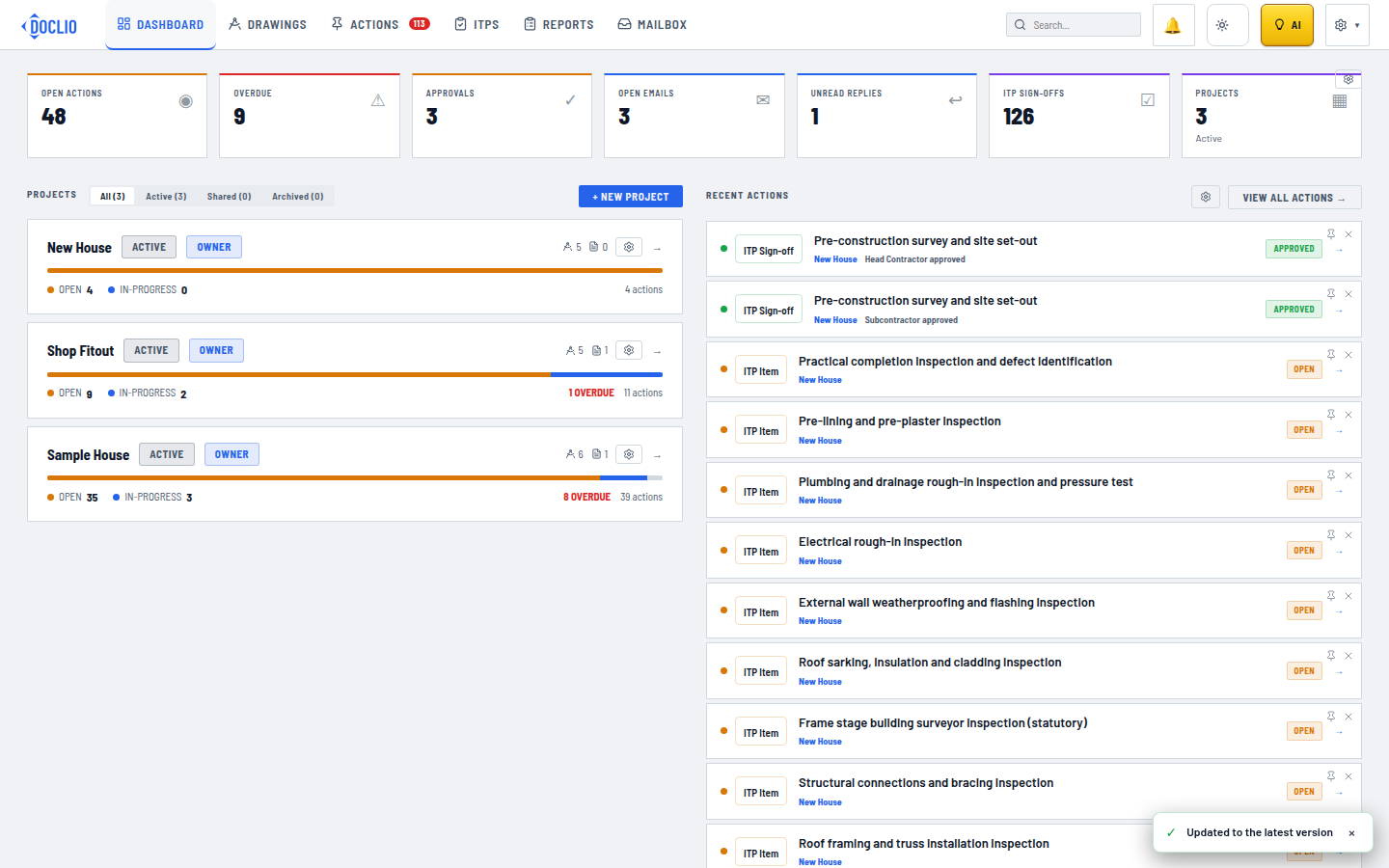
Dashboard, Drawings, Actions, ITPs, Reports, and Mailbox